The Instructor's Manual is one page in your Instructor Dashboard: Instructor's Manual in the sidebar under *Resources*. It starts with how the course runs on Questiva, then the author's own front matter (her preface and the Intuit setup for you and your students), then a guide for every chapter, then her full manual with the teaching tips and answer keys.
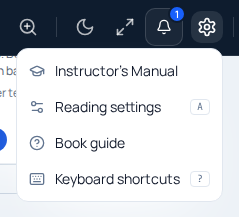
In the reader, Instructor's Manual, the first item under the Settings cog, opens the same page. It remembers where you were: Back to the book at the top returns you to the page you left, and a Chapter N guide button beside it opens the guide for the chapter you were reading.
The manual is the same for every class that uses the book, and the author keeps it up to date, so it can change between visits.
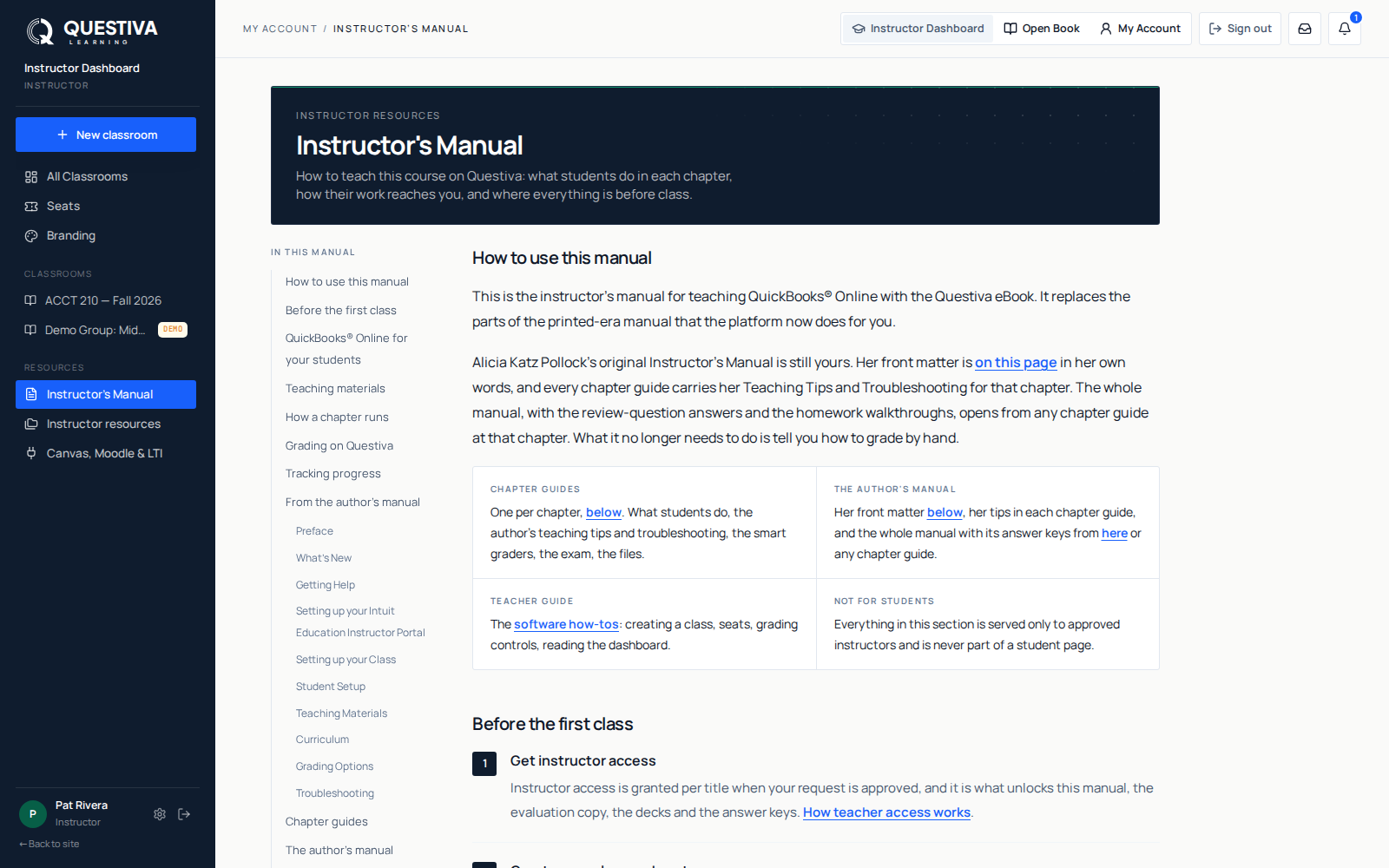
- Where
- Instructor's Manual in your Instructor Dashboard sidebar, under *Resources*, or Instructor's Manual at the top of the Settings cog in the reader (in the reader's menu on a phone)
- From the reader
- Opens the manual page with a way back to your book page and a shortcut to the chapter you were reading
- Who sees it
- Approved instructors with access to that specific title
- Students
- Never see the button and cannot open the manual
The chapter guides
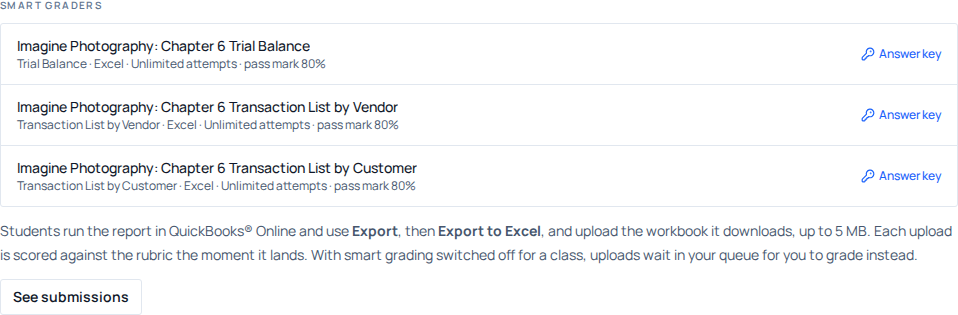
Every chapter has a guide with its own address, /teacher/instructors-manual/<title>/chapter/<n>, listed under Chapter guides on the manual page. Each has the same sections: What students do, Learning objectives, the author's Teaching tips and Troubleshooting, Smart graders (the report each one reads, the file it takes, the attempt allowance, the pass mark and the key download), On Questiva, Review and exam, Files for this chapter (the deck, exam bundle and classroom files) and In the author's manual. Smart graders lists the ones live for your class today. The arrows in the header step to the previous or next chapter, so you can bookmark Tuesday's chapter or send a colleague the guide for the one they are covering.
The author's manual
Choose Open Chapter N in the manual (the chapter's own number) at the foot of a chapter guide and the author's manual opens at that chapter's section. You can also open it from The author's manual on the manual page. It is a small reader of its own, with a section list built from the manual's bookmarks, continuous scrolling, full-text search and a remembered place per title. There is a page counter and a pair of arrows in its header, and a Download button if you would rather keep a copy on your machine.
The header labels it plainly, under the title: Instructor copy · not visible to students. That is not decoration. The pages are streamed from an instructor-only endpoint that re-checks who you are on every request, so the manual's contents are never part of what a student's browser downloads.
Who can see Instructor's Manual in the reader
The manual is a complete answer key, so the rule is deliberately tight. Having an instructor account is not on its own enough. You see the button on a book when you hold instructor access to that title, which is granted when your instructor approval request is approved. Administrators on our side can see it on any title that has one.
- Students, and anyone reading without an account, never see the button. Nothing about the manual is requested for them at all.
- Evaluators exploring the demo classroom do not see it. Demo mode opens the Instructor Dashboard for a look around; it does not make you an approved instructor.
- An approved instructor sees it on the titles their access covers, in both Modern and Classic reading modes.
- If you set up group tools and your instructor request is still being reviewed, the item shows with a padlock. Choosing it explains how to get approved.
Open it from the reader
Open the book
Go to My Library and open the title you teach. Either reading mode is fine.
Open Settings, then Instructor's Manual
Select the Settings cog at the top right of the reader. Instructor's Manual is the first item. On a phone, open the reader's menu and choose Instructor's Manual.
Open this chapter's guide, or read on
The manual page opens at the top. Chapter N guide in its header opens the guide for the chapter you were reading.
Go back to the book
Back to the book at the top of the manual or of a chapter guide returns you to the page you left. Your browser's Back button does the same.
Finding your way around
The section rail
This is the rail inside the author's manual. The manual page itself has a shorter section list down its left side. In the author's manual, a list of sections runs down the left side, built from the manual's own bookmarks: the front matter first, then every chapter with its subsections indented underneath. Each row shows the page it starts on and how much of it you have read, and the section you are currently in is highlighted as you scroll. Every heading is one click away, so reaching Chapter 5's answer key does not mean opening Chapter 5 first. A manual published without bookmarks simply says so and you read it as a continuous document.
On a phone or a narrow window the rail starts closed and covers the page when you open it; picking a section closes it again and takes you to the page. The list-icon button at the far left of the header shows and hides it at any width.
Jump back to the chapter
When you open the manual from a chapter guide and it has a section with that chapter's number, a highlighted shortcut appears at the top of the rail marked You're reading, offering to jump back to it. The match is on chapter number against the manual's own outline, not on a page count. A manual can number its chapters differently from the edition you are teaching, so glance at the section title when you land, and a chapter number the manual does not use gets no shortcut at all.
Search the whole manual
The search box sits at the top of the rail. Type two characters or more and the rail switches to results, each showing its page number and a short line of surrounding text so you can tell the hits apart before you commit to one. Selecting a result jumps to that page. The first search of a sitting has to read the document, so you will see an Indexing message with a page count for a moment; every search after that is instant. Results show up to four matches on a page and stop at sixty, so narrow the wording if the list is full.
Where you left off
Your place in the manual is remembered per title, on your account. Reopen the manual on any computer and you land back on the page you were reading. With no saved place yet, it opens at the beginning, or at the chapter's section when you came from a chapter guide.
Reading tools
The manual reads with the same tools as the book. Reading settings opens the same panel (text size, theme, dyslexia-friendly font, reduce motion), and those settings follow you: change the theme in the manual and the book is in that theme too, because they describe how you like to read rather than which document you are in. Zoom is the exception: the manual keeps its own, so sizing an answer key never resizes the book. Use the plus and minus buttons, or the percentage between them for Fit width, Fit page and Actual size.
What you have read, and where you left off
The top of the section list keeps a running count of how much of the manual you have been through, and every section carries a mark: hollow for pages you have not opened, part-filled once you have started, and a tick when you have been through all of it. A chapter's mark covers the whole chapter, so one glance down the list tells you what you have prepped and what you have not.
Your place is kept on your account rather than in one browser. Prep on a laptop and the classroom machine opens the manual at the page you stopped on.
When the author sends a new edition of the manual and its pages are numbered differently, your place and read marks start again. The old marks pointed at pages of the earlier version, so keeping them would mark the wrong sections as read.
Link straight to a page
The author's manual has an address of its own and the page you are on is part of it, /teacher/instructors-manual/<title>/page/12. Copy it from your browser's address bar to bookmark a page, keep it in your lesson notes, or send it to a colleague who teaches the same title. Opening a link like that takes you to that exact page rather than to wherever you last stopped.
A link only works for someone entitled to the manual; anyone else gets the sign-in page or a refusal, never the manual. An older reader link ending in ?manual=1 now opens the manual page.
Keyboard shortcuts
While the author's manual is open, these keys drive it.
| Key | What it does |
|---|---|
Esc | Closes the author's manual and returns you to the manual page |
← or Page Up | Previous page of the manual |
→ or Page Down | Next page of the manual |
Home | First page |
End | Last page |
Tab | Moves through the controls as usual |
While your cursor is in the search box the arrow keys behave normally for typing, and Esc still closes the manual.
Download a copy
The Download button in the header opens the file in a new tab. Use it when you want the manual on a laptop for a class you are running offline, or open in a separate window beside a student's screen. The same access check that guards the in-app view runs before the link is created, so nobody without instructor access to that title can generate one.
Instructor resources still lists every instructor file per title, the author's manual among them. The reader, the manual page and that page use the same instructor access, so what you can see in one you can see in the others.
If Instructor's Manual is not in the Settings menu
Work down this list before assuming something is broken.
- Check you are signed in to your instructor account, not a student account you use for testing.
- Give the reader a moment after the page loads. The button appears once your access is confirmed, not before.
- Check the title. Access is granted per book, so a manual on one title does not imply one on another.
- Check whether the title was added after you were approved. Instructor access is written title by title at the moment your request is approved, so a book published later is not covered automatically. Ask us and we will add it.
- Check the manual has been published for that edition. Not every title in the catalogue has one.
If the button is still missing on a book you teach, or you open it and see a message saying the manual could not be opened, contact support with the book title. Access is granted title by title on our side, and it is a quick thing for us to check and correct.
Questions we get about this
- Can a student ever open the Instructor's Manual?
- No. The button is not shown to students or to readers without an account, and both the in-app view and the download are refused unless the server confirms instructor access to that specific title. Sending a student the reader's own manual address does not work either. It is checked against the signed-in account on every request.
- Does opening the manual lose my place in the textbook?
- No. Back to the book on the manual page, or your browser's Back button, returns you to the page you left, in the same reading mode.
- I am evaluating the product in the demo classroom. Why can I not see it?
- Demo mode opens the Instructor Dashboard so you can look around, but it does not make you an approved instructor. Instructor materials, including the manual, are released once your instructor approval request is approved for the titles you teach.
- Is the manual available in both Modern and Classic reading modes?
- Yes. Instructor's Manual is in the reader's Settings menu in either mode. It also appears on titles that have no Modern mode at all.