Teacher guideGetting started
Getting started

Try the demo group: a full class in about 90 seconds

Open a practice group with 18 synthetic students and weeks of realistic activity, so you can judge the Teacher Dashboard before you commit a real class to it.

Kind
Overview
Reading time
6 minutes
Last updated
September 24, 2026
Where
Try the demo classroom in the hero on For Teachers, Open the teacher demo on the home page and the textbooks page, or Create classroom in the teacher portal
What you get
A sandbox class of 18 synthetic students; the default Mid-Semester scenario fills it with about eight weeks of activity
Who can open one
Anyone with a free account: instructor approval is not required
Time
About 90 seconds, plus a minute for the free account if you do not have one

Most course software asks you to book a call before you can see anything. This one does not. You can open a working Teacher Dashboard, populated with a realistic class, and click through the screens your students would generate, before you talk to anyone, and before you commit a real section to it.

The demo group is a practice group: the real product, running on manufactured data. Same dashboard, same analytics, same grading queue, same reader controls. The only difference is that the students in it do not exist.

Opening one

  1. Click the demo button

    On For Teachers it sits in the hero and reads Try the demo classroom, or Open your demo classroom if you are already signed in. The same launcher appears on the home page and the textbooks page as Open the teacher demo.

  2. Sign in or create a free account

    If you are not signed in, you are sent to sign in first and then returned to the demo automatically. You do not lose your place: the intent survives the whole signup flow, including profile setup for a brand-new account.

  3. Pick where in the semester it should start

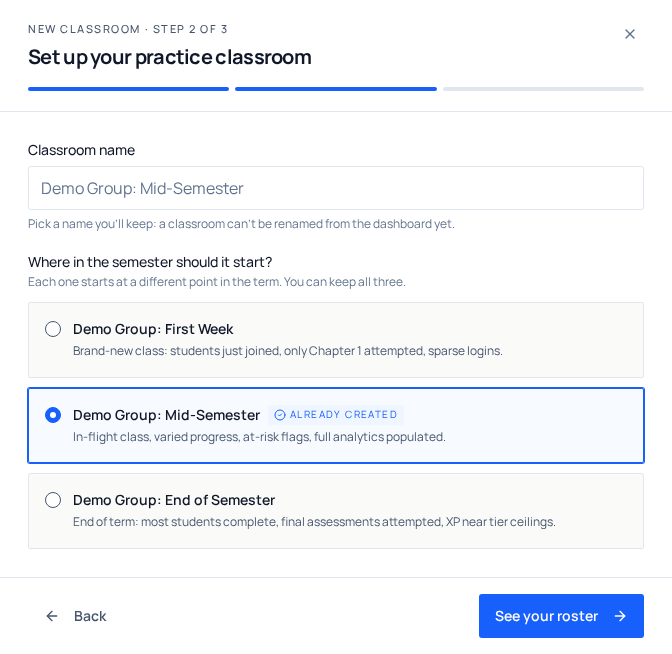
    The create-group wizard opens on Set up your practice group. Name it whatever you like, then choose one of three scenarios. If you started from Create group in the portal instead, the wizard asks What kind of group? first, choose Practice group.

  4. Look at the roster, then create

    See your roster shows the 18 students who will fill the class. Create group builds it and drops you straight into the dashboard. If you already have that scenario, the button reads Open group instead.

The new-classroom wizard on the practice classroom step, with a name field above three selectable scenario cards: Demo Group, First Week, Mid-Semester, and End of Semester, each with a one-line description.
The scenario you pick only changes the activity curve; every scenario builds the same 18-student roster.

Nothing is seeded until you press Create group, which is why the practice class ends up feeling like something you built rather than a page you landed on. Two exceptions. An email from us that says Start the demo now names its scenario in the link, so signing in from it builds that group with no wizard in between and opens the book first, on Chapter 3, with a short walk through what a student does there (the hands-on steps, the chapter quiz, turning in QuickBooks work) before the dashboard walkthrough takes over. And if an admin verifies your instructor approval and you do not have a sandbox yet, a Mid-Semester one is created for you in the background, so it is already waiting the next time you open the portal.

The three scenarios

A dashboard with nothing in it teaches you nothing, and a dashboard where everyone is finished teaches you almost as little. So the demo seeds a specific moment in a semester, and you choose which one.

ScenarioWhat the class looks like
Demo Group: First WeekBrand-new class. Students joined in the last few days, almost nothing has been attempted, logins are sparse (one to three per student), and nothing has been submitted for grading yet.
Demo Group: Mid-SemesterA class about eight weeks in. Varied progress, a visible group falling behind, at-risk flags, and every analytics screen fully populated. This is the one to start with.
Demo Group: End of SemesterFourteen to sixteen weeks in. Most students are complete, final assessments have been attempted, and Points totals sit near the top of their levels.

You can keep all three at the same time. Each scenario gets its own sandbox in your group list, marked with a Demo badge, and creating the same scenario twice opens the one you already have rather than making a duplicate, though a new name you type in the wizard is applied. Every practice group is built on the current QuickBooks Online Step-by-Step textbook, so the chapters, quizzes and graded exercises you see are the real ones.

Who the students are

Alex Morgan, Jordan Lee, Casey Rivera and fifteen others. They are invented. Their addresses are on an internal demo-only domain, no one ever signs in as them (their login history is manufactured along with everything else), and no message of any kind is sent to them or on their behalf.

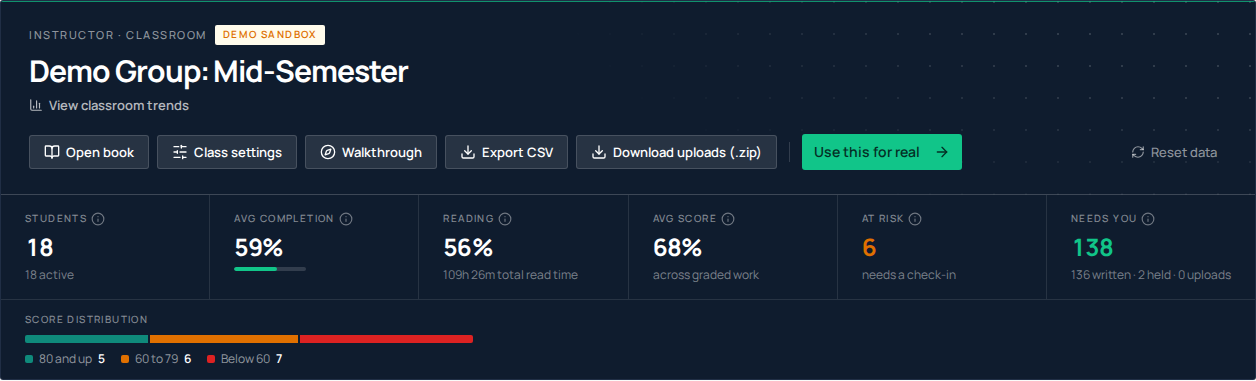
Their activity is manufactured to be uneven on purpose. A couple of students are ahead of everyone, a middle group is tracking along, and a tail has gone quiet. Under 50% complete and no sign-in for 14 days or more, which is exactly the combination that trips the At risk count in the header. If the demo showed eighteen identical students, you would have no way to judge whether the reports actually find the people who need a nudge.

What you can do inside

The demo classroom header with a Demo sandbox badge, the Use this for real and Reset data buttons, and six tiles: Students, Avg completion, Reading, Avg score, At risk and Needs you.
The header tiles are queried live from the seeded data, so they move when the underlying data changes.
  • Click a student's name in the roster to open their detail page. Chapter-by-chapter progress, average score, an eight-week login chart, graded QuickBooks work and assessment history.
  • View classroom trends, under the class name, opens the full class-wide charts and Points, drawn from the same numbers as the header tiles.
  • Needs you is the smart grader's queue as well as the written answers'. The demo seeds real graded submissions across the class, and in the mid-semester scenario three of them are deliberately held for your review with an integrity flag, so the triage view has actual work in it rather than an empty state.
  • Textbook opens the class's own textbook in the reader and brings you back here afterwards. What you can read there follows your own account's access, not the group's.
  • Class settings, in the row of actions under the class name, holds the classroom controls: smart grading, the AI study assistant, Classic-only reading, progress tracking, and whether quiz results are released to students.
  • Customize chapters, quizzes & certification opens the curriculum builder, so you can see how you would narrow the book to the chapters your course actually covers.

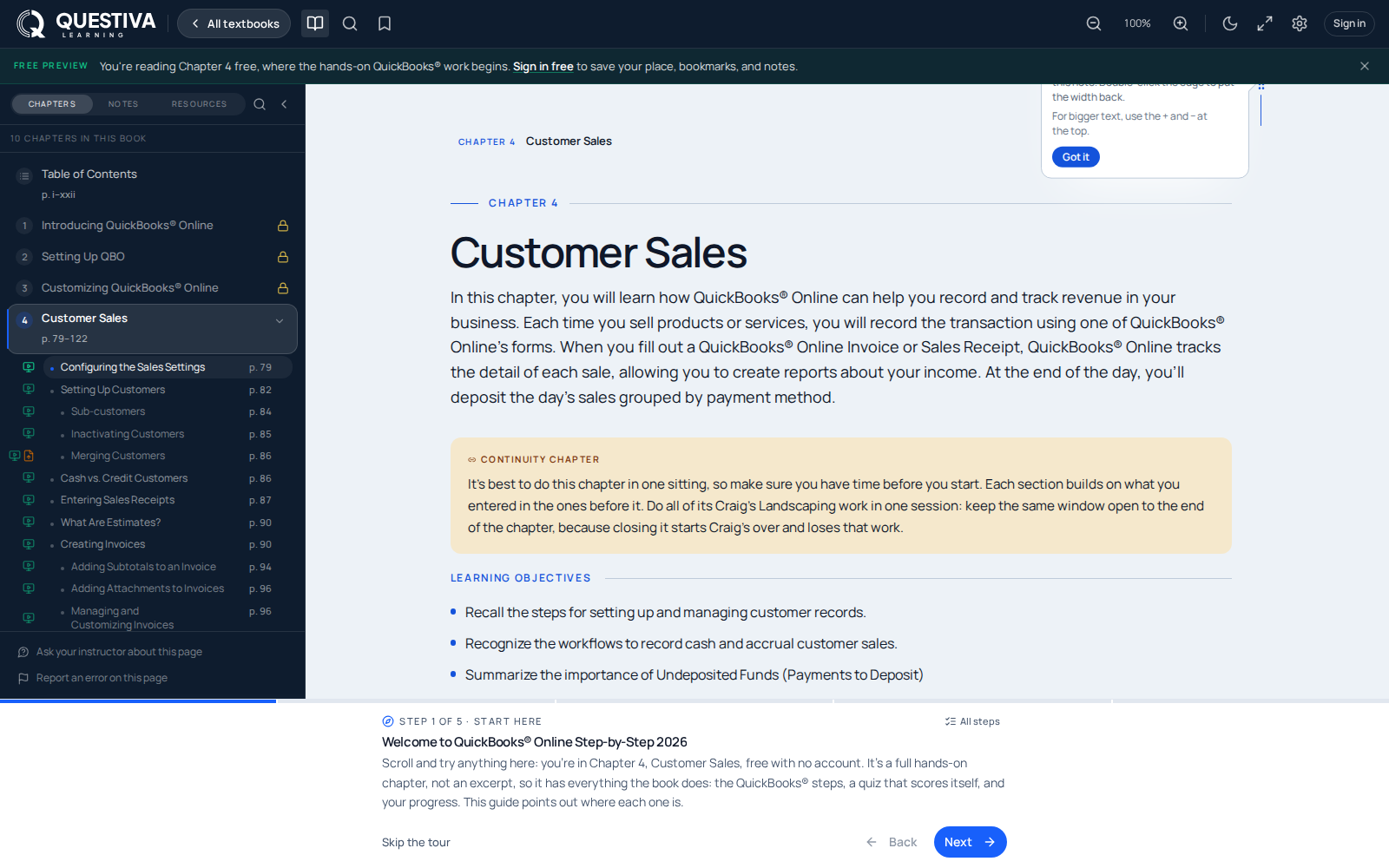
The first time the dashboard opens, the walkthrough offers to show you around: a short tour that rings the control they are about, crossing from the dashboard to one student's page and the grading queue and back. Skip it with Explore on my own and it stays out of your way; Walkthrough, in the row of actions at the top of the group, brings it back at any time, on a practice group or a real one. A Demo group tip panel sits near the top of the dashboard too, reopened from the Demo tips button.

Reset data

Click around as freely as you like. Reset data, on the right of the group header, puts the sandbox back.

Reset deletes the synthetic students in that one group and builds a fresh set against the same scenario, the same time curve, a new random spread of scores and logins. It is not an undo of one action; it is a clean rebuild of the roster.

Reset does replaceReset leaves alone
The 18 synthetic students and everything attached to them, progress, quiz attempts, graded submissions, Points, streaks, badgesThe group itself, including the name you gave it
Their login history and reading sessionsYour other demo groups: the other two scenarios are untouched
The at-risk pattern, re-rolled from the same scenarioEvery real group you own
A confirmation dialog headed Reset followed by the group name, explaining that the synthetic students will be destroyed and re-seeded against the same time curve, with a red Reset scenario button.
The confirmation names the group, so you can tell at a glance which sandbox you are about to rebuild.

What needs instructor approval

The demo is open to any free account, so the parts of the product that would let someone change a real grade or pull a real student's file stay behind teacher verification. Inside a practice classroom you can read everything. What you cannot do without verified access is create a real classroom from the wizard, remove a student from a roster, change a score on a rubric check, release a held submission, record a verdict on a written answer, download a student's uploaded workbook, or save a change in Class settings or the curriculum builder. Requesting access is free for instructors and is normally answered within one business day. See how teacher access works.

Turning it into a real class

Use this for real, the green button in the demo classroom header, is the one real-group action that is open before verification. You give it a name, your institution, the course you teach and roughly how many students you expect, and you can paste your class email list at the same time. It creates the real class and files your instructor approval request together; the invitations are held and start sending the moment your teacher status is verified, so you can do the setup work before the approval lands.

Adopting creates a brand-new class alongside your sandbox. The practice classroom is not converted, renamed or deleted, and nothing crosses over. Not the synthetic students, not the scenario, not the settings you tuned in the sandbox. The new class starts empty and waits for real people, and you choose its textbook and chapters in the curriculum builder. Keep the sandbox as long as it is useful; plenty of instructors leave one in place all semester as a safe place to try a setting before applying it to a live section. Adopt your demo class walks through that step in detail.

Quick answers

Questions we get about this

Do I need to be a verified teacher to open the demo group?
No. Any free account can open one. Verification is needed for the actions that touch a real student, creating a real group from the wizard, sending invitations, changing a grade, or downloading a student's file. Adopting your demo class is the one exception: it creates the real group immediately and holds the invitations until you are verified.
Can I have more than one demo group?
Yes: one per scenario, so up to three at once. They appear in your group list with a Demo badge and are independent of each other. Choosing a scenario you already have opens it instead of making a duplicate.
Are the students in the demo group real people?
No. All 18 are invented, their addresses are on an internal demo-only domain, and no email is ever sent to them. Nothing you do in a practice group reaches a real person.
If I reset the demo, do I lose the group?
No. Reset rebuilds the synthetic roster and everything attached to it. The group, its name, and your other demo groups all survive.
Still stuck

Ask us directly.

A real person on our team reads every message and replies within one to two business days. If something in your classroom is not behaving the way this guide describes, tell us. That is a bug, and we want it.