Grading

Adjust a student's grade, or force a pass

Set any chapter exam grade yourself from the student page, including an exam nobody has sat, count it as a pass, note why if you want to, and undo it later.

Kind
How-to
Reading time
6 minutes
Last updated
September 24, 2026

The exam engine produces a number, and most days it is the number you would have given. Some days it is not. A question has two defensible answers, the exam was mis-keyed, a student sat it on paper in front of you, or your department has a rule the machine has never heard of.

Adjust grades is the answer to that. You set the number yourself on any chapter exam in the book, decide whether it counts as a pass regardless of the number, and note why if it is worth noting. Everything that reads that grade afterwards (the exam row, the student's own screens) reads yours.

Where
A student's record → Adjust grades in the header, or Adjust on a chapter's Exams card
What it covers
The chapter exams, every one in the book, whether or not it has been taken
Required
A whole number from 0 to 100. A reason is optional
The student
A bell notification naming what changed and the new number. No email
Undo
Revert, in the adjusted-grades panel near the top of the same page

Where to find it

  1. Open the class

    Go to Classrooms and pick the class the student is in.

  2. Open the student

    Choose the By student tab and click the student's name. Their record opens in place, under the class's own numbers.

  3. Click Adjust grades

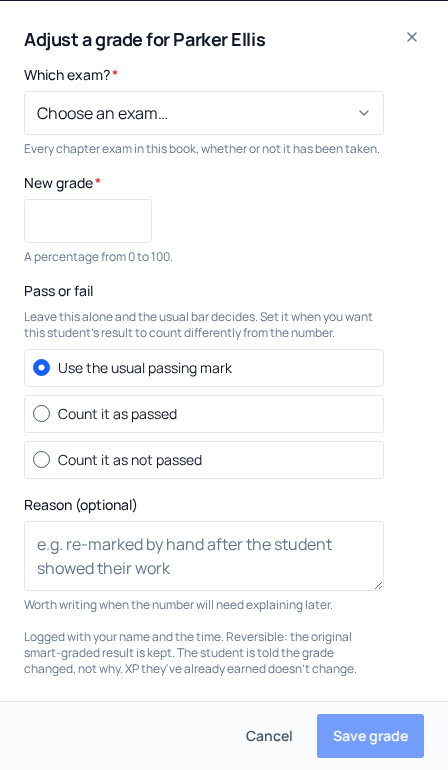
    The button sits in the header of their record, beside the grade. It opens a dialog listing every chapter exam in the book, so you can change a grade without opening a chapter first.

Every exam is also adjustable from its chapter. Open the chapter on the record and its Exams card carries an outlined Adjust button; so does the exam itself, once you click View. Opening from there skips the picker: the dialog arrives pinned to that exam with its current score already filled in, so nudging a 78 to an 80 does not mean retyping the number you are nudging.

The header button appears as soon as the book has an exam bank, which is well before the student has taken anything. Saving an adjustment needs a verified teacher account and a student who is an active member of a class you own. If you are exploring the demo group without a teacher account, the page and the dialog open and read normally, and the save is refused.

Exams, and only exams

The picker lists the chapter exams and nothing else. That is deliberate, and it changed on 30 August 2026. It used to offer chapters, checkpoints and QuickBooks submissions as well, and because that list could only name work a student had already done, it was half empty exactly when you needed it: a student who had sat nothing was offered a row of chapters reading "no grade yet" and not one of the exams that actually existed.

The exams are the graded line, so they are what you adjust. The list comes from the book's own exam bank rather than from the student's attempts, which is why every chapter with an exam appears whether or not anybody has opened it.

The exam's stateWhat the picker showsWhat your number replaces
Taken(currently 62%)The score on their best-scoring submitted attempt at that exam
Taken more than once(currently 62%)The best attempt only. Their other attempts keep their own results
Never taken(not taken yet)Nothing. Your number becomes the grade on record, and the row says a teacher recorded it

The three fields

  1. Which exam?

    Shown only when you opened the dialog from the header. Pick from the list of chapter exams, and the score box refills with whatever that exam currently reads.

  2. New grade

    A whole number from 0 to 100. Anything else is refused with Enter a whole number between 0 and 100.

  3. Pass or fail

    Three settings, covered in the next section. Left alone, it leaves the usual rule in charge of the pass decision.

  4. Reason

    Optional, up to 1000 characters. Save grade stays unclickable until there is a grade selected and a valid number; it no longer waits for a reason. Write one when the number will need explaining later.

If the grade you picked already carries an adjustment, the dialog says so before you save (Already adjusted to 85% by a named teacher, with the machine's original in brackets), and warns you that saving replaces it. However many times a grade is re-adjusted, the original figure the machine produced is the one kept on file, so a later adjustment never quietly redefines what the smart grader said.

Force a pass

This is what most teachers come here for: a student who is over the line in your judgement but under it in the system. The Pass or fail control is how you say so, and it is independent of the number you type. It appears on a chapter exam, which has a passing mark of its own to override; it is not offered on the overall class grade, which has no bar to move. Its three settings are:

  • Use the usual passing mark: the default. You are restating the number and leaving the pass decision to the ordinary threshold for that piece of work.
  • Count it as passed, the result counts as a pass whatever the number says. 75% and a pass is a perfectly legitimate combination when your rule differs from the default one.
  • Count it as not passed, the other direction, for the case where the number flatters the work.

Forcing a pass is a grading decision, not a shortcut around the work. The hands-on steps in the reader, the questions the student answered and the file they uploaded all stay exactly as they were. That is the point: the evidence is what lets you defend the mark.

What you can no longer adjust here

Chapters, chapter checkpoints, graded QuickBooks submissions and the skills assessments are not in this dialog any more. They still show their scores on the student page, and any adjustment made on one of them before the change still stands and still shows its Adjusted badge. What moved is the act, not the record.

A per-check correction on a QuickBooks submission has its own control, on the submission itself: see Override a check and adjust a score. The overall class grade keeps its own act: Set course grade, under the grade in the header of the student's record, where the information mark shows how the suggested number was blended.

What the student sees

  • A notification in their bell, titled Your teacher adjusted a grade, naming the exam that changed and the new number.
  • No email. Working through a roster can easily mean a dozen adjustments in a sitting, and a dozen emails would be worse than none.
  • The new number wherever that exam's grade appears, including their own screens and any colleague teaching the same class.
  • Not your reason. They are told the grade changed, never why.
  • The same per-question record as before. An adjustment changes the grade, not which answers were right. An exam you graded by hand has no per-question record at all, because there was no sitting.

On your side, a confirmation appears as soon as it saves: Grade set to 90%. The student has been told it changed.

Undo an adjustment

As soon as any grade on the page has been adjusted, a panel appears directly under the student's profile strip. It reads how many grades on that page were adjusted by a teacher, and lists each one: what it was, the original number, an arrow to the current number, and who set it. It sits that high on purpose. Anyone reading this student's record should be able to see at a glance which numbers are a teacher's rather than the machine's. It lists every standing adjustment, including ones made on chapters and checkpoints before the dialog narrowed to exams, so nothing you can no longer set is left with no way to unset it.

Revert at the end of a row puts the machine's own result back everywhere it was written: the score, the pass verdict, and for the older adjustments still listed there, the chapter status too. The original is not recalculated or guessed at. It was captured the moment the first adjustment was saved, which is what makes reverting exact rather than approximate. On an exam you graded by hand there was no original, so reverting leaves it ungraded rather than scoring it zero.

The adjustment itself is not deleted, only marked reverted, so the record of who did what survives. If you share a class with a colleague, you can revert an adjustment they made in that class and they can revert yours, because a grade in a room you both teach has to be correctable by either of you.

What an adjustment does not change

  • XP. Points are earned for participation, not for grades. An adjustment never awards XP and never takes any back, in either direction.
  • Certificates. A certificate is issued once and cannot be withdrawn by lowering a grade afterwards.
  • Written chapter-review answers. Those deliberately have no Adjust button. They are feedback you write back to a student, never points, so there is no number to change. Give your verdict on that panel instead.
  • The reader's hands-on steps. Those stay as the student left them.
  • Other students. An adjustment is one grade, one student, one attempt. If the same question is tripping most of your class, that is a signal about the question, and the reasons you have been writing are the evidence for it.

One last caveat worth knowing before you use this on a certification-style exam. The per-domain breakdown beneath the headline score is built from the answers the student actually gave, so it does not move when you adjust the headline. A 90% you set can sit above domain bars that average to something lower. The headline is the grade of record; the bars underneath remain a description of the attempt.

Quick answers

Questions we get about this

Can I give a student more than 100%?
No. A grade is a whole number from 0 to 100, and anything outside that is refused before you can save. There is no bonus-credit path. The tool is for correcting a mark, not for awarding extra.
Does the student find out why I changed their grade?
No. They get a notification in their bell saying a grade was adjusted and what it is now. Your reason is kept for the record and shown to teachers in that class, never to the student.
If I lower a grade, does the student lose XP or a certificate?
Neither. XP is awarded for participation and is never clawed back by a grade change, and a certificate that has been issued cannot be withdrawn by adjusting a grade afterwards. If a certificate was issued in error, contact support.
Why is there no Adjust button on a student's written answers?
Because written chapter-review answers carry no points by design. They are there for you to read and respond to, and giving them a grade control would imply they count toward completion when they do not. The verdict you leave on that panel is the whole mechanism.
Still stuck

Ask us directly.

A real person on our team reads every message and replies within one to two business days. If something in your classroom is not behaving the way this guide describes, tell us. That is a bug, and we want it.