Teacher guideTracking progress
Tracking progress

The student record, section by section

One student's standing in your class: their grade, their engagement, the four categories across the book, and their work chapter by chapter, one click at a time.

Kind
Overview
Reading time
6 minutes
Last updated
September 16, 2026
Where
Group dashboard, By student tab, then a student's name
Who can open it
The teacher who owns the class, and Questiva admins
What it holds
The grade, engagement, the four categories, and the record chapter by chapter
Editing
Adjust grades for an exam, Set course grade for the overall grade

When a student is struggling, an average tells you nothing about why. The student record answers the why without burying you: the top of it is a summary you can read in a few seconds, and everything underneath opens only when you ask for it. Nothing prints a whole exam or every written answer at once. You open a chapter, then a category, then the one question you want.

How to open a student's record

  1. Open the class

    Go to Classrooms and pick the class you want.

  2. Choose By student

    The tab between Needs you and By chapter lists everyone in the class.

  3. Click their name

    The record opens in the same place, under the class's own numbers. The tabs stay live, and Student roster at the top of the record takes you back to the list.

Someone you invited at an email address that has no account yet appears as plain text rather than a linked name. There is no record to open until they accept.

The header

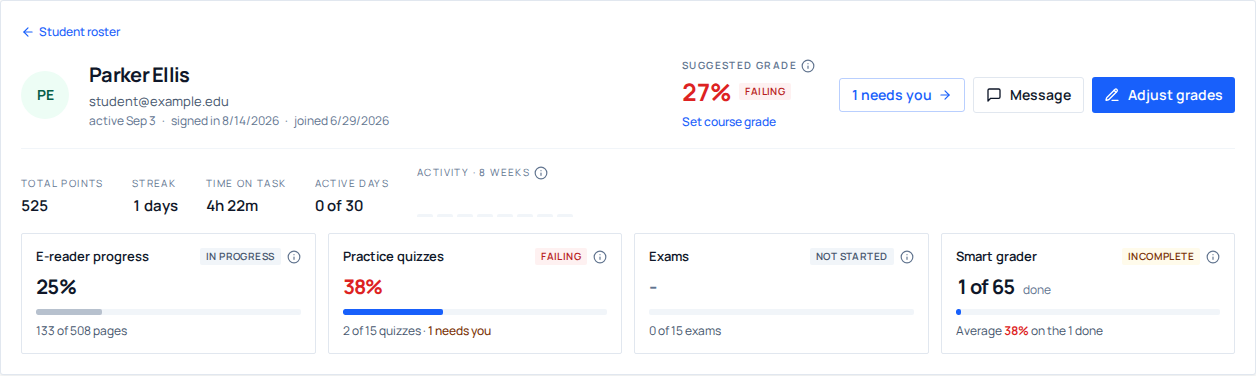
The student's name and email, then three dates: when they were last active (the last time they did anything at all: opened the book, answered a quiz, submitted work, or signed in), when they last signed in, and when they joined this class. Sign-ins are rare on purpose: a session lasts thirty days, so the sign-in date tells you whether an account is stuck, never whether a student is working.

Beside the name sits the grade. Until you set one it is labelled Suggested grade: a blend of their average score (55%), completion (30%) and participation (15%). The information mark beside the label shows each ingredient. Set course grade makes the number yours, and the label changes to Course grade. The badge beside it bands the number the way every teacher page does: Excelling from 90, Passing from 80, At risk from 60, Failing below that. There is no class pass mark.

Three actions follow. N need you appears when this student has work waiting on you and opens the Needs you queue. Message opens your general thread with them. Adjust grades opens the grade picker on their chapter exams.

The engagement line

Level, total points, streak and achievements come from the points system and never feed a grade. Time on task is the time recorded on their chapter reviews, not reading time. Active days counts separate days in the last thirty on which they did anything. The small bars show the last eight weeks, one bar per week, scaled to seven days, with the current week in the darker colour.

The four categories

Four cards across the header summarise this student over the whole book. They are the same four numbers the class's By chapter tab uses, folded across every chapter, so the two can never disagree.

CardWhat it counts
E-reader progressHow far into each chapter they have read, measured against the chapter's own pages. Furthest page reached, so looking something up never takes progress away.
Practice quizzesThe chapter's practice quiz, scored on the multiple choice alone at their best attempt, the same figure their reader shows them. Its essay and fill-in-the-blank answers sit here too, and are never marked.
ExamsThe chapter exams. The graded line, and the only number a new adjustment lands on.
Smart graderThe QuickBooks work the smart grader marks, scored on the best released submission.

Chapter by chapter

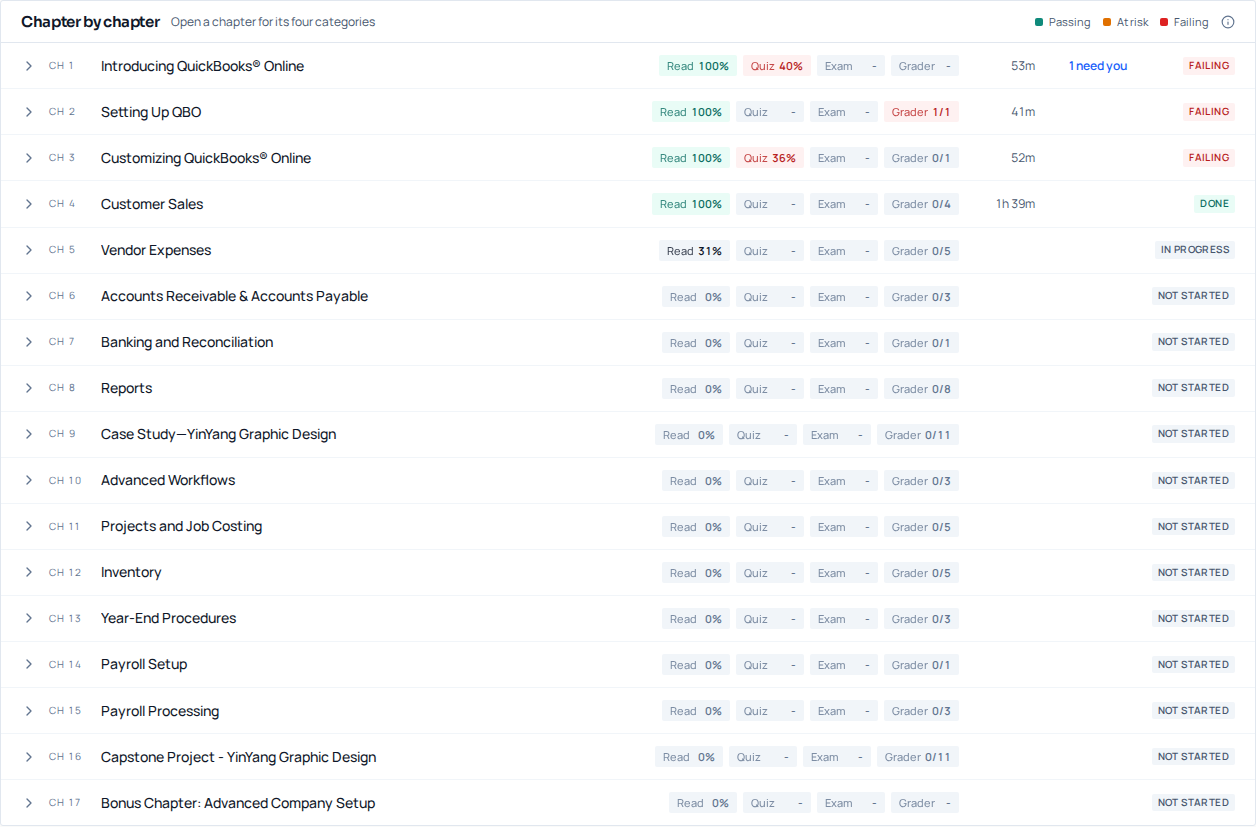
Below the header, every chapter of the book gets one row, touched or not, because what a student has not done is half of what you came to find out. Each row shows the four categories as small chips, how many items in that chapter need you, and one verdict. Every row starts closed. Front matter and appendices appear only when there is something in them.

The verdict averages the chapter's scores only: its quizzes, its exam and its smart-graded work. Reading and written answers never lift or sink it. A chapter with nothing scored yet says Not started, In progress or Done from how much of it has been touched.

  1. Click a chapter. It opens into four cards, one per category, each with its number, a badge and a few lines of summary: the quiz names and scores, the exam's attempts and result, how many written answers are waiting on you, which QuickBooks activities are submitted.
  2. Click View on a card. That category opens underneath as a table, one row per question or activity, with the result on each row and nothing else.
  3. Click a row. Only then does it show the question in full, what the student answered, the answer key, and the act that goes with it.

What each table holds

  • Practice quizzes. Each checkpoint with its attempts, the grade on record and a Passed or Not passed badge, then its most recent attempt one row per question, marked Correct or Wrong. Attempts shows first, best and latest, and every attempt in order. Reopen appears in Graded, First attempt classes. Under it, Essay and fill-in-the-blank: one row per written answer with what speaks for it (the smart grader's read against the key, your verdict, or the student's own claim), and opening one shows their answer beside the book's key. Passing or returning an answer happens in Needs you; the card's Review in Needs you link takes you there, filtered to the chapter.
  • Exams. The exam's score with Adjust and Reopen, then the paper one row per question: their answer and the result. Opening a question shows the key, the explanation, how many in the class got it right, and Credit to the class. How the class did switches to the same questions, hardest first.
  • Smart grader. One row per activity the chapter expects, submitted or not, with attempts, score and status. Opening one gives you their file, the answer key, the check-by-check breakdown, and a link to the full review.

A link from the Needs you queue to a particular submission opens its chapter and its row for you, and a link from the By chapter tab opens the chapter you were reading about. Those are the only times anything opens by itself.

The Skipped badge

Some chapters show an amber Skipped badge and a number on their E-reader card. It counts hands-on QuickBooks steps in that chapter that were ticked in one go by Mark chapter complete (a control in the reader's own chapter sidebar, behind the cog marked *Chapter options*), rather than one at a time. Hover the badge, or move to it with the keyboard, and it names the sections involved and shows how many steps in each were declared this way.

The count is careful about what it claims. Steps the student had already ticked themselves are not included, so somebody who worked through most of a chapter and used the button for the last two steps shows two, not the whole chapter. Chapters you have hidden from your class are left out entirely. And if the student later clears a declared tick and does the step for real, it drops out of the count on its own.

Other assessments

Anything that is not chapter work, such as the skills programs and certification practice forms, sits in its own closed section at the bottom: one row per assessment with its attempts, the date of the last one, the time spent, and the best score.

Adjusted grades

When any grade on the record has been set by a teacher, an amber box under the header lists each one with the machine's number, yours, and who set it. It is the one place a Revert lives, and it is there so you can always tell which numbers on the page are yours.

When there is genuinely nothing anywhere, the record says so in one line: This student hasn't started any coursework yet.

Quick answers

Questions we get about this

Can I change a score from this page?
Yes. Adjust grades in the header, or Adjust on a chapter's Exams card, sets an exam score by hand. Set course grade under the grade sets the overall grade. See Adjust a student's grade. Opening an exam question lets you credit it to the whole class. Written answers are passed or returned from Needs you and never carry a score.
Why is every chapter closed when I open a student?
So the record reads as a summary first. The chips on each row tell you where to look, and the chapter, its category and its questions open one click at a time. A link from Needs you or the By chapter tab still opens the chapter it points at.
A student is on my roster but their name is not a link. Why?
They were invited at an email address that has no account yet, so there is no record to show. Once they accept the invitation and their account exists, the name becomes a link.
Does the student see this page?
No. It opens only for the teacher who owns the class, and for Questiva admins. Students see their own progress in their own account, and they cannot see anyone else's.
Still stuck

Ask us directly.

A real person on our team reads every message and replies within one to two business days. If something in your classroom is not behaving the way this guide describes, tell us. That is a bug, and we want it.