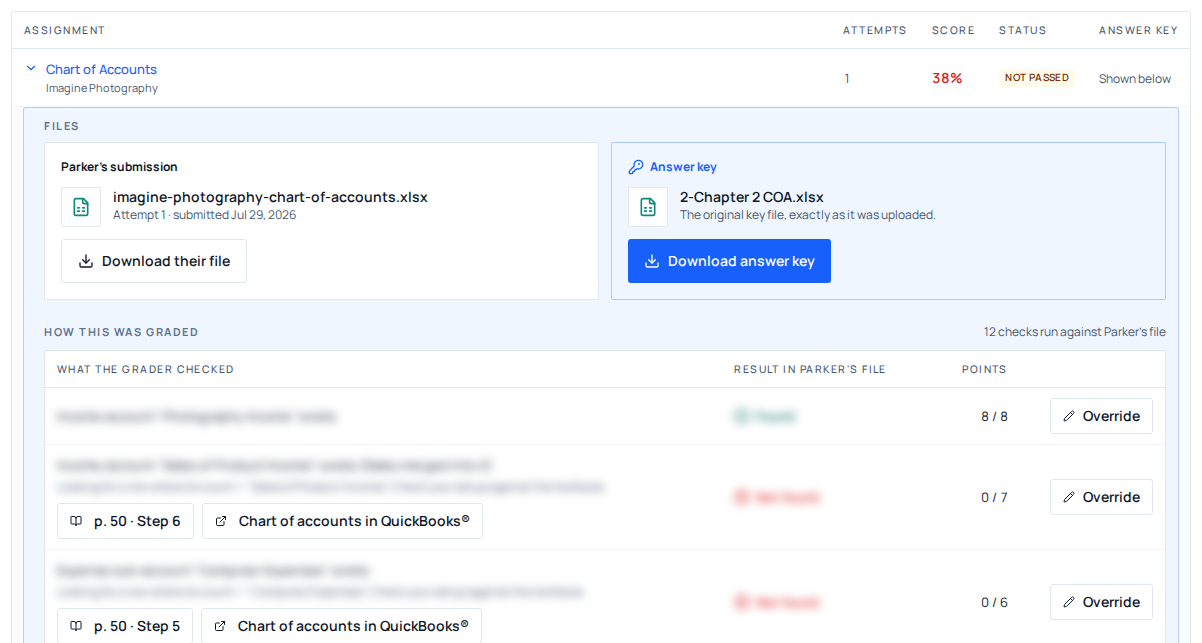
The smart grader is deterministic. It reads the report a student exported from QuickBooks Online and compares it against the activity's rubric, one check at a time. It is not AI, and it never connects to QuickBooks. It only ever sees the file that was uploaded. That makes it fast and consistent, and it also means a rubric can occasionally be stricter than you would be: a student names something in a way that reads as a sensible synonym, and one otherwise sound submission comes back short.
When that happens you do not re-mark the submission. You flip the single check that was wrong, record why in a sentence, and the attempt's score recalculates from the corrected checks.
- Where
- Group dashboard → Needs you → open a submission → Rubric checks
- The control
- Override at the end of any check's row
- Required
- A written reason, up to 1000 characters
- Effect
- The attempt's score and pass result recalculate as soon as you save
- Separate step
- Releasing a held grade: an override does not release it
Find the check you want to change
Open the class
From your classes, open the class: it opens on Needs you. Turn on Show reviewed to list every submission rather than only the ones waiting on you, then open one. While a class is open, the same list sits in the left sidebar as Needs you.
Open the attempt
Each row is one student's upload of one activity, newest first. Click Review → at the right of the row.
Read the rubric
The Rubric checks table lists every check the grader ran, what the rubric expected, what the file actually contained, the points, and a Matched or Not matched verdict.
Flip one check
Click Override
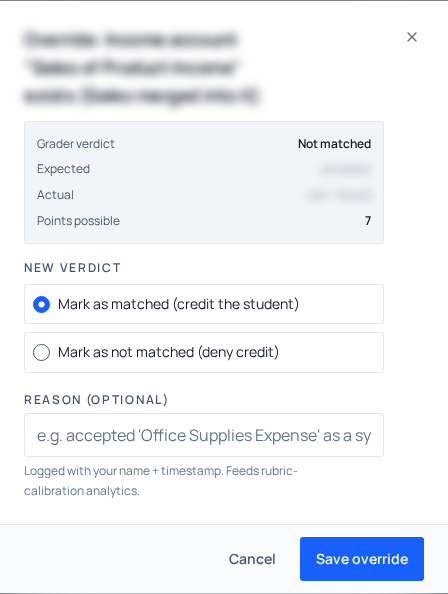
The button sits at the end of the check's row. A dialog opens showing the grader's original verdict, the expected and actual values, and the points possible.
Pick the new verdict
Choose Mark as matched (credit the student) or Mark as not matched (deny credit). The dialog opens on the opposite of the current verdict, because that is almost always why you opened it.
Write the reason
The reason is required and holds up to 1000 characters. One clear sentence is enough: what you accepted, and why.
Save override
The rubric table refreshes with the new verdict and the score at the top of the page recalculates straight away.
Your name, the date and time, and your reason are then printed under that check's label whenever the attempt is opened. The grader's own verdict is never thrown away. It is kept on the record and shown back to you as Grader verdict whenever you reopen the Override dialog on that check.
How the score recalculates
There is no box to type a score into. The total is always computed from the checks. Every point-carrying check is totalled, matched checks count their points, and the score is that share of the points available, rounded to a whole percentage. Your override stands in for the grader's verdict on that one check; every other check keeps whatever it had.
Pass or not passed is then re-evaluated against the activity's passing score, so a single correction can move a student across the line in either direction.
| What happens | When you save an override |
|---|---|
| The attempt's score and points | Recalculated immediately from the corrected checks |
| Pass or not passed | Re-checked against the activity's passing score |
| The student's copy of the result | Shows the corrected verdict and score the next time they open it |
| The grader's original verdict | Kept on the record, reopen the Override dialog on that check to see it |
| Points on the Classroom trends page | Awarded if the correction takes an already-released attempt over the passing score. Points already awarded are not clawed back if it goes the other way |
| The student's other attempts | Untouched: an override applies to one attempt only |
| Notifications | None. No email or in-app message is sent to the student |
Checks that carry no points
Some checks are informational rather than scored. They show 0 / 0 in the Pts column, and in the dialog their points possible reads 0. Overriding one corrects the feedback the student reads; it does not move the score in either direction. That is deliberate. Informational credit is never allowed to substitute for a point-carrying check the student missed, because a pass on a graded activity counts toward chapter completion.
The ceiling is 100
A recalculated score never goes above 100. There is no way to push a student past full marks with an override, so treat the tool as a correction instrument rather than a way to hand out bonus credit.
An override does not release a held grade
Watch for one trap here: the attempt review page always shows a score headline and a "Student passed" or "Student did not pass" line, whether or not the attempt has been released. That headline is what you can see. It is not evidence the student can see anything. The queue is the only screen that tells you an attempt is still held, and the only screen that can release it.
The split is intentional: you can correct as many checks as you like, take your time, and post the grade only when you are satisfied with it. The student sees nothing in the meantime.
Correct what needs correcting
Work through the rubric on the attempt page and override any check the grader called wrongly.
Go back to the queue
Use Back to Needs you at the top of the attempt page. Held grades carry a Held grade badge there; expand the row and press Release grade.
Release the grade
On that student's row, click Release, then confirm with Release grade. The confirmation names the score they are about to see, which is your corrected figure, not the machine's original.
If the class has smart grading on, there is nothing to release. The score was already the student's, and your override changes it in place.
When the student clearly did the work but the file disagrees
This is the case the override exists for. Before you decide, the attempt page gives you four things worth looking at.
- Expected next to Actual. A near miss (different wording, an extra word, a plausible synonym) usually means the rubric is stricter than your own marking would be. A value that is not close is a different conversation.
- The uploaded workbook. The exact file the student submitted is downloadable from the link under the rubric table, so you can open it in your own spreadsheet program and look at the whole report rather than one cell.
- File integrity. The panel above the rubric rates the file out of 100 as
Trusted,RevieworSuspectand lists any signals it found. A trusted file plus a near-miss value is the ordinary "they did the work" pattern. - All attempts by this student. If they submitted more than once, the full trajectory is listed oldest to newest with a download per attempt, so you can see exactly what changed between uploads.
From there you have two reasonable outcomes. Override the check, credit the student, and write down what you accepted. Or ask them to re-export from QuickBooks Online and upload again, a clean re-export often resolves a formatting problem faster than a correction does. Most activities allow unlimited attempts; where an attempt limit has been set on the activity, the student is told how many they had when they run out.
If the export could not be read at all, the attempt shows as errored with no checks to override. Nothing on that page can be corrected, because there is no rubric result to correct. A fresh upload is the way through.
Changing your mind, and who can do this
Overrides are not one-way. Open the same check again and pick the other verdict. The score recalculates again. Note that a check stores one override, not a history: your new name, timestamp and reason replace the previous ones rather than stacking beneath them. If the wording of a correction matters to you, write the final version rather than refining it across several saves.
Saving an override is limited to verified teacher accounts. If you are exploring in the demo group without one, the review screens open and read normally (the queue, the rubric, the integrity panel, the attempt history), but the save is refused. Reading a real student's grade and changing it are deliberately different levels of access.
Questions we get about this
- Can I type in a score by hand instead of flipping checks?
- Yes, but not from this screen. On the review page the total is always computed from the rubric checks. To type a number, open the student's page in your classroom and use Adjust grades, see Adjust a student's grade. Flipping a check is the better tool when the rubric got one thing wrong, because it corrects the record a student reads; typing a score is the tool for everything else.
- Does the student get told that I changed something?
- No message or email is sent. The corrected verdict and score appear in their copy of the result the next time they open the activity. If the attempt is still held for review, they see nothing at all until you release it.
- Does an override affect other students who made the same mistake?
- No. An override applies to one check on one attempt by one student. If the same check is failing across your class, you would need to correct each attempt, which is usually the signal that the rubric itself should be looked at.
- Can I see who overrode a check if I share a class with a colleague?
- Yes. The name, date, time and reason of the most recent override are printed under the check on the attempt page. The grader's own original verdict is kept too, reopen the Override dialog on that check and it is shown as Grader verdict.