Almost nobody teaches a textbook cover to cover. A 15-week course drops chapters. A summer intensive reorders them. You can shape the book to your syllabus for one class at a time: choose the book, hide the chapters you are not teaching, and put the rest in your order.
- Where
- Your class page, then Customize chapters, quizzes & certification
- Who can change it
- The teacher who owns the class
- Applies to
- Every student in that one class
- Does not change
- What a student's plan lets them open
Open the curriculum page
Go to your class
From the Teacher Dashboard, open the class you want to shape. Each class carries its own chapter selection, so start from the right one.
Open Class settings
The Class settings button sits in the row of actions under the class name. It opens the settings sheet: the reader switches at the top, then the quiz, answer and review dials.
Select Customize chapters, quizzes & certification
The link is at the bottom of that sheet. It opens a page titled Customize this class.
Pick the book first
The Book section at the top of the page is where you attach a textbook to the class. The menu lists every published book with its chapter count, so you can tell two editions apart at a glance. Choosing a book here is what makes the chapter list appear below it.
You can look at a different book's chapters before committing. Choose it in the menu and the chapter list redraws for that book. Nothing is saved until you use Save curriculum.
Hide the chapters you are not teaching
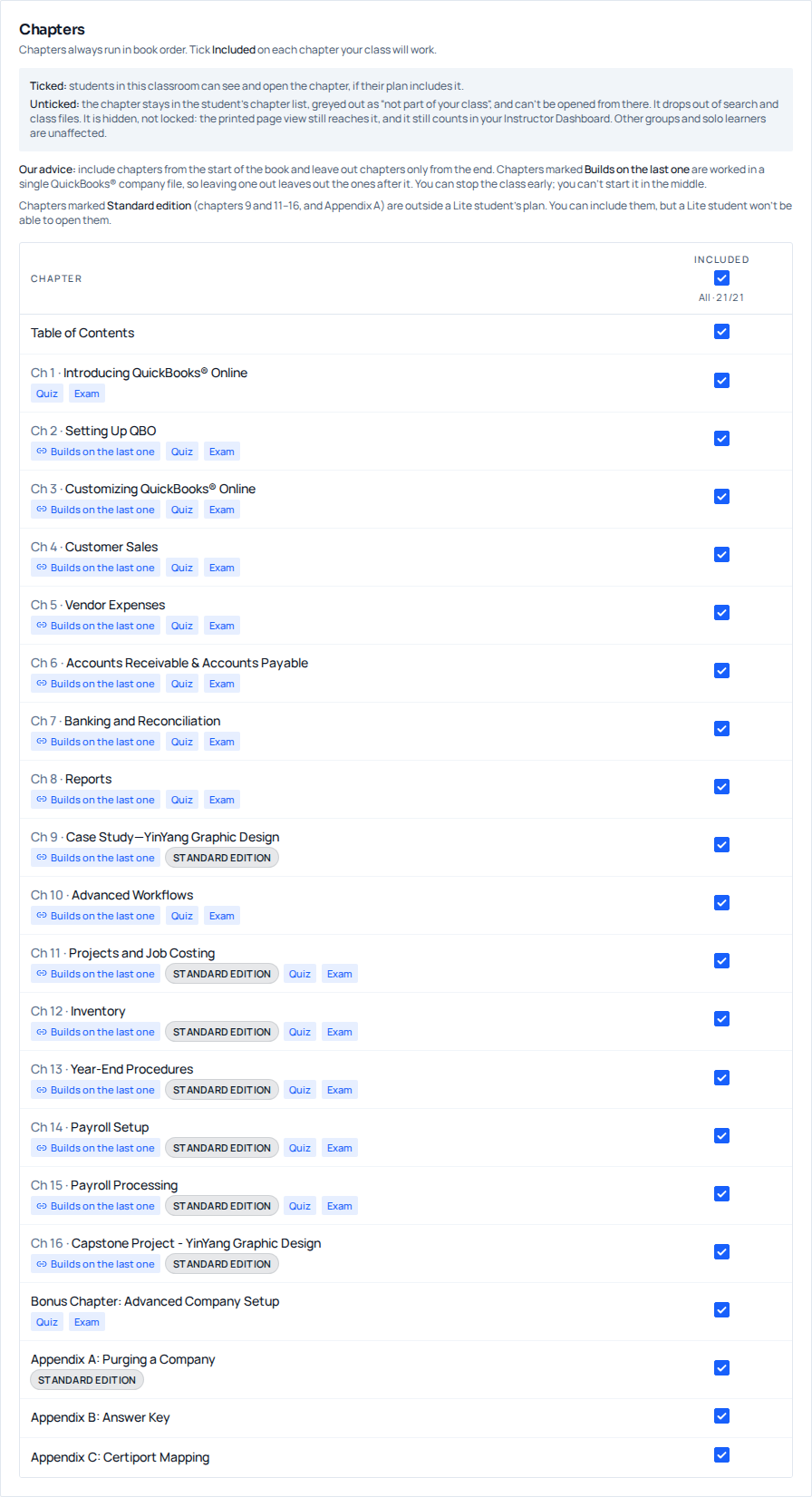
The Chapters section lists every chapter in the book. Each row has a checkbox at the far left. That checkbox controls whether the chapter is part of this class.
Clear the checkbox at the left of a chapter row
The chapter title goes grey with a line through it and picks up a
Hiddentag.Work down the list
Rows also carry a
QuizorExamtag where the chapter has one, so you can see what you are dropping before you drop it.Select Save curriculum
The button sits in the bar at the bottom of the page and stays greyed out until you have changed something, when an Unsaved changes note appears beside it. A Curriculum saved message confirms the save.
Each row also carries a Required checkbox, between the title and the arrows, which greys out on a hidden chapter. It is saved with your selection and is still ticked when you come back to this page, but it is a note to yourself: it does not change what a student sees, what they can open, or how your dashboard counts progress.
Put the chapters in your teaching order
Each row has an up arrow and a down arrow on the right. Use them to move a chapter through the list. Your order is the order the chapter list in the reader shows your students, so a class that covers payroll before reporting can see it listed that way.
The arrows are greyed out between two chapters tagged Builds on the last one, for the same reason: they share one company file, so the later one's exercises need the earlier one's work already in it. Chapters outside that run still move freely.
Reordering changes that list, and only that list. The Previous chapter and Next chapter buttons at the foot of a chapter still follow the book's own chapter order, and chapter numbers and printed page numbers are untouched. Which matters when a student is reading the printed page view or working from a paper copy alongside the reader.
What hiding a chapter actually changes
Hiding is a curriculum signal. It removes a chapter from the places a student would go looking for material, and it removes it from part of your own hands-on reporting.
| Surface | A chapter you hid |
|---|---|
| Chapter list in the reader | Still listed, but greyed out and struck through with a hidden icon, and it cannot be opened from there |
| Previous and next chapter buttons | Skipped: they step over it to the next chapter your class still has |
| Search inside the book | Returns no results from it |
| Exercise files in the reader | Its chapter group drops out of the Exercise files list |
| Skipped hands-on steps on the student detail page | Its steps are no longer reported for this class |
Leaving the row visible but inert is deliberate. A student who sees a struck-through chapter understands it was taken out of the course on purpose, instead of wondering whether the book is broken or whether they are missing something they paid for.
What hiding a chapter does not do
This is worth being precise about, because it is the one place teachers form a wrong expectation. Hiding shapes what the class is offered. It is not a lock.
- The printed page view still holds every page the student's plan covers. A student on a full-access plan can type a page number in the reader toolbar or page forward into a chapter you removed.
- The single Everything at once download in the reader's exercise files is not filtered. It is one bundle of every exercise file in the book, including the files for chapters you hid.
- The only hard boundary on what a student can read is what their own plan covers. Hiding never adds a boundary, and it never removes one either.
- A student cannot use your selection to reach anything extra. Hiding can only narrow what is on offer, never widen it.
How completion is counted after you trim
Completion percentages on your dashboard are measured against all of the book's content chapters, including the ones you removed. (Front matter and the appendices are excluded either way.) A class that drops four chapters will see students top out well short of 100 percent even when they have finished every chapter you assigned.
Read those percentages as relative progress across your class rather than as a score against your syllabus. The chapter-by-chapter list on a student's detail page is easier to read against a trimmed book than one percentage is.
Turn whole components on or off
Above the chapter list, the Class components section holds one switch that applies to everyone in the class.
QBO certification prep
This controls whether the certification practice material is offered to your class. Switching it off hides those prompts and the certification tab in the eBook portal. It is a visibility choice only, and students still need paid access to sit the practice exams.
Interactive chapter quizzes used to be the second switch here. It is gone: one dial in Class settings, named Chapter quizzes, now decides both whether the practice quiz appears for your class and how it is graded, with Unavailable as its hiding position. Teachers running their own quizzes in a campus LMS set that dial to Unavailable to avoid two competing sets of questions.
A workable order of operations
Set the book before term starts
Do this first, since changing it later clears everything else on the page.
Hide, then reorder
Trim the list down before you start moving rows around. Fewer rows means fewer arrow presses.
Decide on certification prep
The one switch left on this page turns the QBO certification practice exams on or off for the class.
Set the chapter quizzes in Class settings
Quizzes are no longer a switch on this page. Class settings → Chapter quizzes is one dial that decides both whether the quiz appears and how it is graded, Unavailable is its first position. If you are grading elsewhere, set that before students start taking them rather than after.
Save, then read the chapter list yourself
Open the book from your own account and look at the chapter list. It is the fastest check that the order matches your syllabus.
Every choice on this page belongs to one class. Two sections of the same course can run different chapter sets from the same book, and neither affects the other.
Questions we get about this
- Do my chapter choices apply to all of my classes?
- No. The selection is saved against one class. If you teach two sections and want the same trimmed curriculum in both, set it in each class.
- Can a student still reach a chapter I hid?
- Through the printed page view, yes. That view holds every page the student's plan covers, so a student whose plan covers a chapter can page or type their way into it. What their plan covers is the only hard boundary; hiding shapes what the class is offered rather than locking anything.
- What happens if I change the book after setting up chapters?
- Your hidden chapters and your order are cleared, because they refer to the old book's chapters. The new book starts with every chapter showing, and you set it up again from there.
- Does hiding a chapter delete a student's earlier work in it?
- No. Nothing is deleted. The chapter stops being part of the class experience, and its skipped hands-on steps stop being reported for this class, but the underlying records stay intact and come back if you show the chapter again.