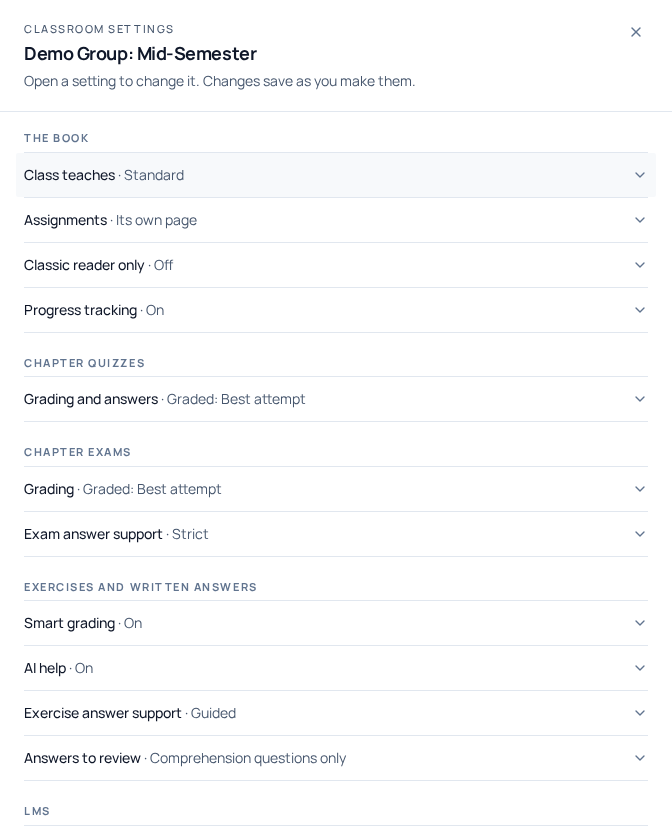
Every class you run carries its own set of reader controls. They decide how the textbook behaves for the students in that class: whether graded QuickBooks work is scored the moment it is uploaded or held for you, whether the AI study assistant appears, which reader students get, whether their reading is recorded, how the practice quizzes are graded, how much of the book's answer key the class can see, and which written answers are queued for your review. Four switches and three dials, one sheet, and each one saves the moment you change it.
- Where
- The Class settings button on the class page: it opens the settings sheet
- Saving
- Every switch and dial saves on the spot: there is no Save button
- Who it affects
- The students in that class. Your own reading is unaffected
- Limit
- A control can narrow what a class sees. It never unlocks content a student's access does not already include
Where the controls live
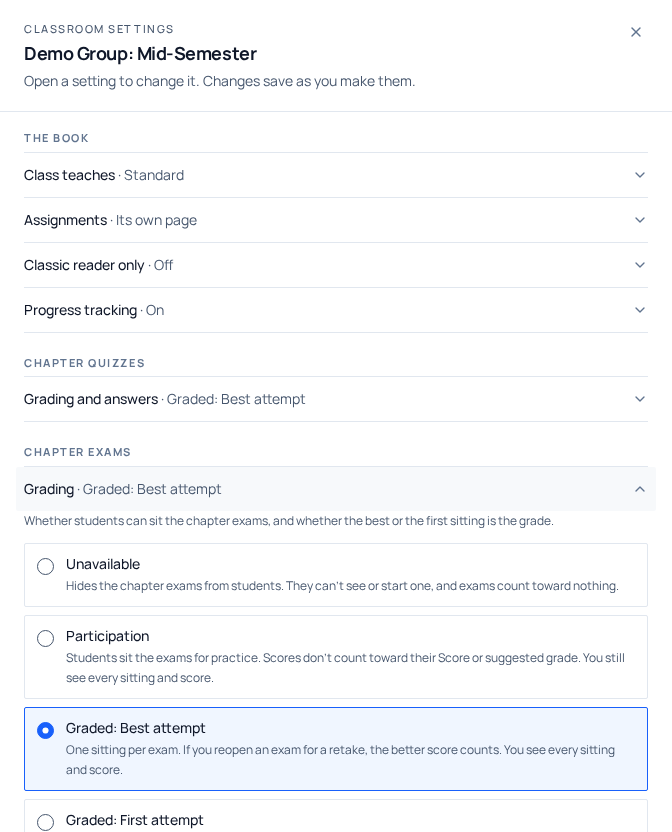
Go to My Classrooms and open a class. Class settings sits in the row of actions under the class name, beside Open book, Walkthrough and Export CSV. It opens a sheet headed with your class name: seven settings, each collapsed to one line showing its name and its current value. Open a line and the control appears with its help text; one is open at a time, and it saves the moment you change it. Below the settings sit the link to the chapter picker and a read-only LMS line. These controls used to live in a permanent panel in the dashboard's right rail; since 11 August 2026 the sheet is the one place they live.
Smart grading
This decides what happens the instant a student uploads their exported QuickBooks report for a graded exercise.
On: the student uploads the file and sees a score and a check-by-check breakdown right away. The smart grader reads the student's real exported workbook and compares it against an answer key. It is deterministic rubric matching, not AI, and it never connects to QuickBooks Online. It only ever reads the file the student uploaded.
Off: the student still does the work and still uploads the file. The runner tells them up front that their teacher reviews it and posts the grade, and after upload they see no score. The submission lands in Needs you on the class dashboard, where you read it and release the grade. Nothing reaches the student (no score, no pass or fail, no XP) until you release it.
AI study assistant
On: students can open the in-book study assistant and ask questions about the material they are reading.
Off: the assistant button does not appear in the reader for anyone in the class. Some instructors switch this off during exam weeks and back on afterwards, which is a two-second change on this panel.
This control can only take the assistant away, never add it. A student whose access does not include the assistant will not see it even with the switch on.
Classic reader only
This one reads in the opposite direction from the others: switching it on applies a restriction.
On: students see the page-faithful Classic reader: the exact printed page, matching a paper copy line for line. The Modern interactive mode and the switch between the two are both hidden.
Off: students choose for themselves and can move between Modern and Classic in the reader. Pin the class to Classic when you assign work by printed page number and want every student looking at the identical layout.
Progress tracking
On: reading position, checkpoint attempts, highlights, notes and bookmarks are saved for each student in the class, and that activity feeds your Teacher Dashboard.
Off: the reader still works and the annotation tools still open, but nothing from it is written to the server. Students lose their saved place, so the book no longer reopens where they left it. Checkpoint attempts, highlights and notes are not kept. In the Modern reader the chapters-read tally and the next step line disappear from the head of the chapter list. Your dashboard has no reading activity to show for that class.
Chapter quizzes: how the practice quizzes are graded
The first dial governs the practice quizzes, the short question sets at the end of each chapter in the reader. One choice decides whether the quiz appears at all, how it is graded, how many attempts a student gets, and when they see the answers.
- Unavailable: the whole end-of-chapter review disappears for the class (multiple choice, comprehension questions and fill-in-the-blanks), nothing is recorded, and a chapter completes on its reading and hands-on steps.
- Participation: students see right or wrong as they go, and nothing is recorded as a grade, only whether they completed it.
- Graded: Best attempt: unlimited retakes, answers shown after submitting, and the best score is the one on record. New classes start here.
- Graded: First attempt: one attempt, and the answers stay with you until you release them, for one student or for the whole class.
Whatever the position, you always see every attempt and every score. The mode decides what the student is told, never what you can read. The four positions, and how to reopen a quiz for one student, are covered in how chapter quizzes are graded.
Answer support: how much of the answer key the class sees
The second dial covers the book's answer material everywhere except the practice quizzes: the fill-in-the-blank reveals, the answers to the questions in the book's DIY exercises, the smart grader's expected figures, what the AI assistant is allowed to disclose, and the answer-key download.
- The class works the problem: no answer values anywhere. Students still see which checks they failed and how to fix them, and the AI assistant still coaches them through it; it just never hands over the number.
- Release answers after they submit: the fill-in answers and the grader's expected values are revealed once a student has had an attempt at the work. New classes start here.
- Self-paced, everything, including downloads: everything above, plus the book's Appendix B Crosscheck Trial Balance as a downloadable workbook. Meant for students working without a class, and every download is logged.
Answers to review: which written answers are queued for you
The third dial decides how much of the class's written chapter-review work is queued for you as reading waiting on a verdict. It never changes what students write or what you can read: every answer stays available under All answers and on the student's own page at every position.
- Nothing, they check themselves: no queue. Students check their own work against the book's answer key and record how they did, and you still see each student's answers and their own self-check beside every one under Practice quizzes on their page. New classes start here: a review queue is something you opt into.
- Comprehension questions only: the prose answers come to you. Fill-in-the-blanks do not, because the book prints those answers in Appendix B and students can check them without you.
- Everything they write: every comprehension answer and every fill-in-the-blank waits for you, around 68 written items per student across the 2026 book.
Working the queue, the verdict buttons, and the by-student summary table are covered in reviewing written answers.
The four switches at a glance
| Control | Switched on | Switched off |
|---|---|---|
| Smart grading | Score and check-by-check result appear on upload | No score: the work waits in your queue until you release it |
| AI study assistant | Assistant available in the reader | Assistant button is not shown to the class |
| Classic reader only | Printed page only; no Modern mode, no switch | Student picks Modern or Classic |
| Progress tracking | Place, checkpoints, highlights and notes saved; progress bar visible in Modern | Nothing saved; no resume, no progress bar, no dashboard activity |
One more control sits with your chapters
At the bottom of the sheet there is a link reading Customize chapters, quizzes & certification. That page carries a Class components section with one more class-level control: QBO certification prep, which decides whether the certification practice exams are offered to the class. It narrows what your class is shown and never grants access a student's plan does not include, and unlike the sheet, it is not saved until you press Save curriculum at the bottom of that page. The same page is where you choose which chapters your class sees, covered in choosing your chapters. The Interactive chapter quizzes checkbox that used to live there is gone: hiding the quizzes is now the Unavailable position on the Chapter quizzes dial.
Your class defaults, for classes you have not created yet
On the My Classrooms page, above your list of classes, there is a card headed Your class defaults. It carries the four switches (smart grading, the AI study assistant, Classic reader only, and progress tracking), and it sets how every new class you create starts out. It is the same set of choices the reader setup walkthrough offers you the first time you open the book as a teacher. Note that the three dials are not among them; a new class always starts on Graded: Best attempt quizzes, answers released after submitting, and no written-review queue.
These are a starting point only. Changing a default does not reach into classes you already created. Each class keeps its own settings, editable from its own dashboard.
When a student is in more than one of your classes
This is the behaviour behind most of the questions we get about the controls, and it is worth knowing before it surprises you.
For the AI study assistant, Classic reader only, progress tracking, the quiz mode and the answer dials, a student inherits from a single class: the one they joined most recently that is still active and not archived. Not the class that matches the book they happen to be reading. Not a blend. One class wins outright.
So a student in your Fall class, set to Graded: First attempt, who then joins a second class on Best attempt, takes every practice quiz under the second class's rules, in both books. The reverse holds too. Only active memberships count, so a student you have removed from a class no longer inherits anything from it.
Anything tied to a specific exercise is the exception, and it behaves better. Whether a submission is held is decided per book: the system looks for the class whose book matches the exercise the student is submitting, and uses that class's setting. If the student is in exactly one class, that class decides. If no class matches the book and the student is in several, the submission is smart-graded rather than held. The same per-book rule governs what the smart grader is willing to disclose about an exercise's target figures, and it cannot be widened by an unrelated class, so the one-class-wins rule above does not quietly hand a student the targets for a book you teach. One consequence is worth knowing: the wording a student reads in the runner before they upload comes from the most-recent-class rule, so a student in two classes can occasionally be told one thing and get the other. The grade itself follows the book.
Why your own reading does not match your students'
These controls apply to students enrolled in a class. Your teacher account is not enrolled in your own class, so when you open the book you read with everything available: both readers, the study assistant, full quiz results. That is deliberate (you need the unrestricted view to prepare), but it does mean you cannot confirm a setting by opening the book yourself. The sheet is the source of truth for what your class is getting.
The same holds for a solo learner with no class at all. Someone reading on their own gets the permissive setting for every control, because there is no teacher standing behind them to release a checkpoint or grade a held submission.
Questions we get about this
- Do these controls change what my students paid for?
- No. Each control can only narrow what your class is shown. Turning the AI study assistant on for a class does not grant it to a student whose access does not include it, and turning certification prep on does not give anyone an exam they have not bought.
- Do I have to click Save?
- Not in the Class settings sheet: every switch and dial there saves the moment you change it, and an error appears in the sheet if a save fails. The certification control on the chapters page is different: it needs the Save curriculum button.
- If I turn smart grading off, do students stop getting feedback?
- They stop getting an instant score. They still do the work in QuickBooks Online, still export the report, and still upload it. It arrives in your Needs you tab, where you review it and release a grade. Which is when the student sees their result.
- Can I set different controls for different books in the same class?
- Not today. The reader controls are set once per class and apply to whatever that student is reading. Which chapters a class sees is chosen per book on the curriculum page.