- Where
- The class page, Invite students → Create accounts
- Who it is for
- Post-secondary and adult learners whose email does not reach them
- What you get
- A list of temporary passwords, shown once, that you print or download
- Batch size
- Up to 100 students in one go
Most classes join by invitation. Some students never get there, because the blocker is the inbox rather than the person: a campus alias nobody reads, a provider that refuses our mail, or a lab full of people with fifty minutes on the clock. Create accounts is the answer for those students. You paste your class list, the platform makes an account for each person who does not have one, and you get a temporary password for every account to hand out on paper.
When to use this instead of an invitation
Invitations remain the normal path, and they are less work for you. Reach for Create accounts in these cases.
- A student's address bounces or their mail provider refuses ours, so the login code never lands.
- Class-day rostering. Twenty-eight people in a lab, and "check your email, find our message, click the link" loses a third of the room.
- A student who still has not signed up by week three and is now behind the rest of the class.
Before you start
This path is built for post-secondary and adult learners. Questiva Consultants is designed for college, vocational and adult bookkeeping programs. Creating an account on someone's behalf removes the student's own sign-up step, so if your program includes learners under 13, contact us first and read the Terms of Service, we need the right agreement in place before that class starts.
You also need to own the group and have your instructor approval confirmed. If your teacher-access request is still being reviewed, the screen declines the whole batch and says so. You can invite students by email in the meantime, and those invitations send the moment you are verified.
Create accounts is not available in the demo group. The button only appears on a real one. Use Use this for real on the demo first, then create accounts in the group that creates.
Create the accounts
Open your group
Go to your classrooms and open the class you are rostering.
Select Invite students
The button sits at the top of the class page and opens the Invite a student panel.
Select Create accounts
It is the third button in that panel, after Send Invite and Add whole class. It opens the Create accounts for students window.
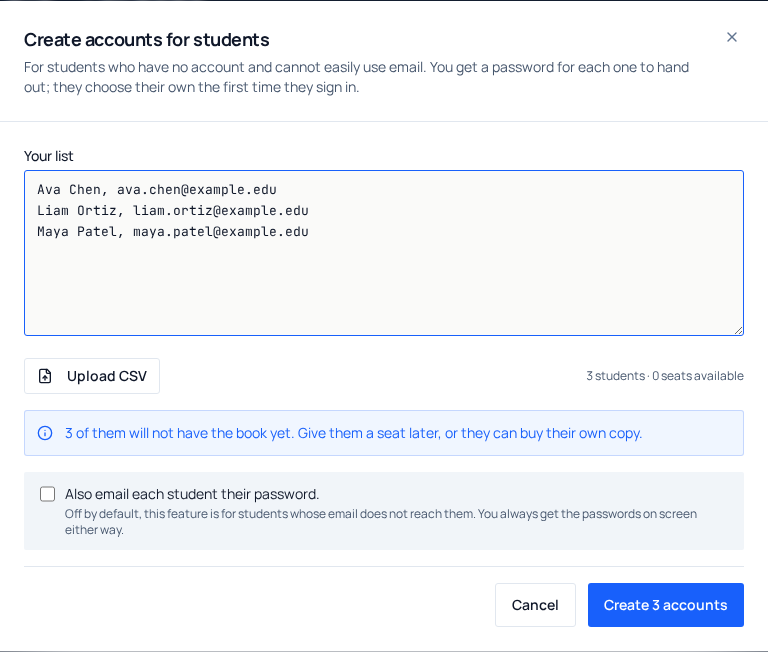
Paste your class list
One student per line in the Your class list box. You can also select Upload CSV and pick a
.csvor.txtfile exported from your student information system; its contents are added to the box, so you can still edit them before you submit.Check the count
Under the box you see how many students were detected and how many seats you have available. If it says no students were detected, the addresses in your paste are not in a shape the box recognizes.
Decide about email
Also email each student their password is off by default. Leave it off for students whose mail does not reach them. You get the passwords on screen either way.
Select Create accounts
The button names the number it is about to create. The passwords come back on the next screen.
What the list can look like
The box is tolerant about shape. Names are optional, but include them where you can: without a name, your roster and gradebook have only the email address to identify that student, and matching addresses to faces in a room is slow. All of these work, mixed in the same paste.
| What you paste | What is recorded |
|---|---|
[email protected] | Email only, no name |
Ava Chen <[email protected]> | First name Ava, last name Chen |
Chen, Ava, [email protected] | First name Ava, last name Chen |
Ava Chen,1001,[email protected] | First name Ava, last name Chen: the ID column is ignored |
Lines with no address are ignored, a repeated address is only counted once, and a numeric student-ID column is dropped rather than being filed as somebody's surname. The limit is 100 students per batch; split a larger list and run it twice.
The passwords appear once
When the batch finishes you get a table with three columns: Student, Sign in with (the address they type at sign-in) and Temporary password. Each password is generated for that one account, four groups of four characters separated by hyphens, with the easily-confused characters like 0, O, 1 and l left out so it survives being read aloud or copied onto a slip of paper.
Two controls sit under the table. Download CSV saves the same three columns as a spreadsheet file, and it is the reliable copy. Use it for anything longer than a handful of students, then print from your spreadsheet program. Print this list opens your browser's print dialog on the page exactly as it appears on screen, which is fine for a short list but can cut off a long one. Either way, the file holds working passwords, so delete it once you have handed them out.
Closing the window asks you to confirm, because that is the moment the passwords are gone. Create more accounts clears the same table to start a second batch, and it does not ask first, print or download before you select it.
What the student does the first time
Hand each student their own slip. Their instructions are short.
Go to the sign-in page
At the sign-in page there are two tabs. They choose Use password, not Send a code.
Enter the address and the temporary password
The address on the slip is the one you typed into the class list.
Choose their own password
A Choose your password screen appears immediately, and nothing else in the platform opens until they finish it. This is also where they agree to the terms and privacy policy.
The temporary password stops working as soon as the student sets their own, and you cannot sign in as them afterwards. That is deliberate. It means a submission on a created account is genuinely the student's work, so a grade appeal has an answer.
Created students appear on your roster right away as full members, with their name linking to their student detail page. There is no invitation to accept and no group code to type.
Who has the book
Creating accounts never requires a purchase, and a class larger than your seat pool goes through without complaint. If you have seats available, each new student is covered as their account is made. Students beyond the pool get the front matter and chapter 4, and the summary tells you how many are in that position.
You can cover them later from your seats with Give a seat, or they can buy their own copy. Their account and their progress carry over either way, so nobody has to start again.
Rows that did not need a new account
The summary lists these separately, under a heading that counts them. Three things land there.
- Someone who already had an account. They are added to your roster and keep the password they already use. Their credentials are never touched, so there is no password to hand them. We email them that they were added and put the same notice in their notification bell.
- Someone already on this roster. Nothing changes; the row says they are already a member or already have an invitation waiting.
- An address that is not a valid email address. Nothing is created for that row and the reason is shown next to it. Fix the typo and run those rows again.
If a student forgets their password
There is no forgot-password link in the platform, and no control on your side that re-issues a password for a student. If the student's inbox does work, they can sign in with Send a code at the sign-in page and set a new password from their account. If their inbox is the reason you created the account in the first place, contact support and we will get them back in.
Questions we get about this
- Can I set one password for the whole class?
- No. Every account gets its own generated password, and there is no control to apply one password across the list. A single shared password with thirty names on it makes every grade and every seat impossible to attribute to a person.
- Can I look up the temporary passwords later?
- No. They are shown once on the results screen and nothing can retrieve them. Print or download the list before you close the window.
- What happens if I create more accounts than I have seats?
- The batch still goes through. Students covered by an available seat get the full textbook straight away; the rest get the front matter and chapter 4 until you give them a seat or they buy their own copy.
- Does the student still have to enter the group code?
- No. Creating the account also puts the student on your roster, so they are in the class the first time they sign in.