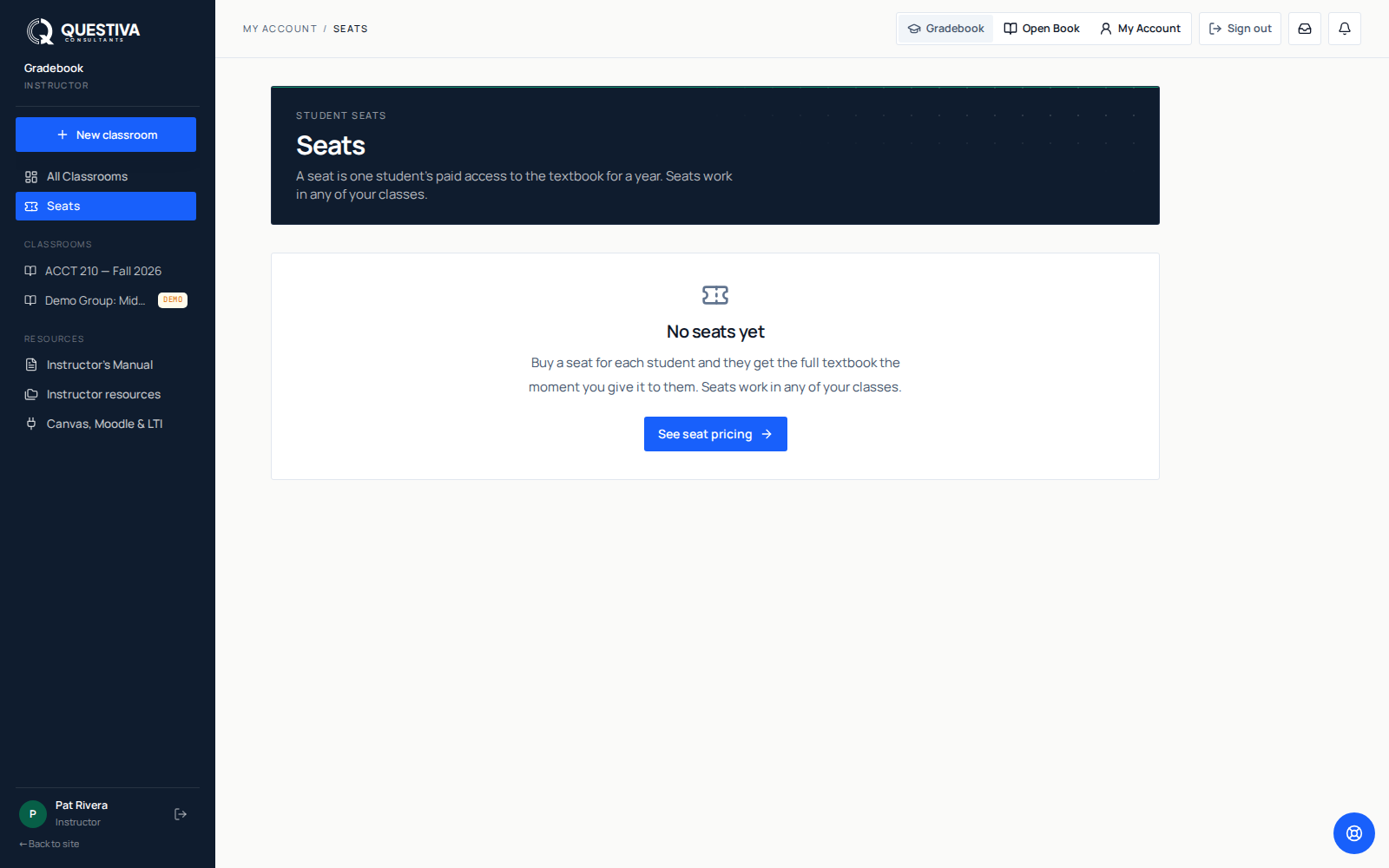
A seat is one student's paid access to the class textbook for a year. You buy a block of seats, and each student who gets one can read the whole book, do the graded work, and keep their progress. Seats work in any of your classes. A seat is not tied to one section, so a block of 60 can cover two classes of 30 that use the same book.
- Where
- Teacher Dashboard, Seats in the left sidebar
- What one covers
- One student, full textbook access
- How long
- One year from the day you assign it
- Who can give them out
- The person whose account bought them

The three ways a student ends up with a seat
You never have to walk a student through claiming a seat. There is no seat code for them to type and no claim screen for them to find, the only code a student ever uses is your group code. All three paths end the same way: the book appears on their shelf.
They join with your group code
When a student joins one of your classes using the group code, the system looks at your seat pool and claims a seat for them on the spot. If a seat is available, they have the book before they finish reading the welcome screen. The same thing happens when a student accepts an emailed invitation link.
You give seats from the Seats page
For students already on your roster who do not have a seat yet, open Seats and hand them out in one action. This is the path to use at the start of term, when a class has filled up faster than your purchase did.
You create their accounts for them
If you create student accounts yourself, each new account is covered from your pool as it is created. That flow is for post-secondary and adult learners only. See create student accounts for the full picture.
Give a seat
Open Seats
In the Teacher Dashboard sidebar, click Seats, just under All Classrooms. When you have seats waiting, the number on that row is how many you have bought and not yet given out.
Pick the class
If you teach more than one class, a row of class names appears above the roster. Click the one you are seating. Demo classes are left out on purpose, so a practice roster can never spend a real seat.
Check the list
The list shows students who have an account. Someone you invited by email appears once they accept, and claims a seat at that moment anyway. Everyone who still needs a seat is already ticked for you, because giving them all one is the usual case. Untick anyone you want to skip. Students who already have one are marked
Has a seatand cannot be selected twice.Give the seats
Click the button beside the Who gets a seat heading. It reads
Give 12 students a seat, with your own count. Each student gets an email and an in-app notification telling them they have access.
The three numbers on the Seats page
| Tile | What it counts |
|---|---|
Available seats | Seats you have bought that no student holds yet, counted only from the blocks that cover the book this class uses |
Given out | Seats from those same blocks that a student currently holds |
Access through | The earliest date one of those blocks stops covering students |
The counts are scoped to the book the selected class uses. If you bought seats for a different title, a line under the tiles tells you how many and for which book. Seats bought without a title attached cover every class you own.
Buying seats
Open Seats in the left sidebar. Before your first purchase the page shows See seat pricing; once you own seats, Buy more seats sits at the top instead. Both open the group pricing page. Set how many students, and the page shows the per-seat price and the total, with the volume discount applied automatically as your count crosses each tier. Because crossing a tier reprices the whole block, the page will tell you when buying a few more seats actually costs less in total.
The buy button takes you to secure card checkout. Seats land in your account as soon as payment clears, and you assign them afterwards.
You can also buy from your account: Buy more seats at the top of Account → Teams, or the Seats for others card on your account dashboard. Both open the group pricing page, which recognises you when you are signed in, so there is no email to type and the seats go straight into your account. The receipt we email you repeats the three hand-out steps and links to your seats page.
When seats expire
Each seat runs for one year from the day you assign it to a student, not from the day you bought it, so buying ahead of a term costs nothing. Unassigned seats stay assignable for 24 months after purchase; the Assign unused seats by tile on the Seats page is that date, and each student's own Access through date sits beside their name. When a student's year passes they drop back to the free preview of the book: the front matter and chapter 4, rather than the full text, so plan the date around your term, not the calendar year.
Taking a seat back and moving one
A seat can be taken back and given to someone else. A student drops the course in week two, and the seat should go to the person on your waitlist.
Go to your account's Teams page. Each block of seats you bought is listed there with the people holding them. The Release seat button beside a student is how you take a seat back: you confirm once, they lose access immediately, and the seat returns to your pool. Then go back to Seats and give it to the new student in the normal way. That same page can also hand seats straight to email addresses, under Give seats by email: one address, or paste a whole list separated by commas or new lines, and each person gets their own email.
If someone says they never got their email, click Resend email beside their name on the Teams page. It sends the same "You now have access" message again; nothing else changes.
There is no single control that moves a seat straight from one student to another, and the Seats page points you to us for that. Either take the seat back and give it out again, or contact support and we will move it for you.
Four things that surprise teachers
- Removing a student from your roster does not take their seat back. The two are separate on purpose. A student can finish the book after leaving your section. If you want the seat returned to the pool, release it on the Teams page.
- Demo classes never spend a seat. A demo roster is made up, and seating imaginary students would burn seats you paid for. Demo classes are hidden from the Seats page entirely.
- A class bigger than your seat block is not an error. Seats have never gated adding students. Anyone without one still joins, still appears in your gradebook, and can either wait for you to give them a seat or buy their own copy of the book.
- The `SEAT-` code is not for students. It identifies your purchase when you contact us. No student-facing screen accepts it, so there is nothing to hand out. The only code a student ever needs is your group code.
If someone else at your school bought the seats
Seats are held by the account that paid for them, and only that account can give them out. If your department chair or bookstore made the purchase, your own Seats page will show no seats even though the school holds plenty, and students joining your classes will not be covered automatically. Ask the purchaser to open Account → Teams (it works for any account, teacher or not) and paste your students' emails under Give seats by email, or contact support with your order details and we will sort it out.
What the student sees
There is nothing to enter. When you give a student a seat, they get an email headed "You now have access to…", naming the book when your seats are tied to one title, and your Questiva Consultants course when they are not, plus a notification in the app, and the textbook is on their shelf the next time they sign in. Students who claimed a seat themselves by joining with your group code get no extra email, because the book is simply there when the join finishes.
Questions we get about this
- Does a seat cover a student in all of my classes, or only one?
- A seat covers the student, not a section. Seats work in any of your classes, so a student you teach in two courses uses one seat. What a seat does not do is cover more students than you bought. A block of 30 seats covers 30 students, however many sections they are spread across.
- What happens if a student joins my class and I have run out of seats?
- The join still succeeds. They are on your roster, in your gradebook, and can read the free preview chapters of the book. They get the full text as soon as you give them a seat, or they can buy their own copy.
- Can I get a refund on seats I did not use?
- Unclaimed seats are refundable within 14 days of purchase. Contact us with your order number and we refund the unused portion. Mid-term changes, such as adding a section or reducing next term, are handled the same way.
- I bought seats but the Seats page still says none are available. Why?
- Two common reasons. The seats may be scoped to a different textbook than the class you are looking at, in which case a line under the tiles names the other title. Or the purchase was made on a different account, such as your department's, only the buying account can hand seats out.