- Where
- Your class page, Invite students
- Three ways in
- Email invitation, group code, invite link
- Per upload
- Up to 100 addresses at a time
- Expiry
- Invitations do not expire
You can hand a class three different doors and they all land in the same place. Email each student an invitation, read an 8-character group code aloud, or paste your whole roster in one go. Students who already have an account skip the invitation entirely and appear on your roster right away.
Open your class first. In the teacher sidebar, select your class under Classrooms, or go to your classrooms and pick it from the list. Everything below happens on that page.
The three ways a student gets in
| Way in | Best for | What the student does |
|---|---|---|
| Email invitation | A class list you already hold as email addresses | Opens the email and selects the join button inside it |
| Group code | Saying it aloud, writing it on the board, printing it on a syllabus | Types the code on the join page |
| Invite link | Pasting into an LMS announcement or a welcome message you write yourself | Selects the link |
All three produce the same roster row. Mixing them is fine. A student who was emailed an invitation and then types the group code instead does not end up on your roster twice.

Send an email invitation
Select Invite students
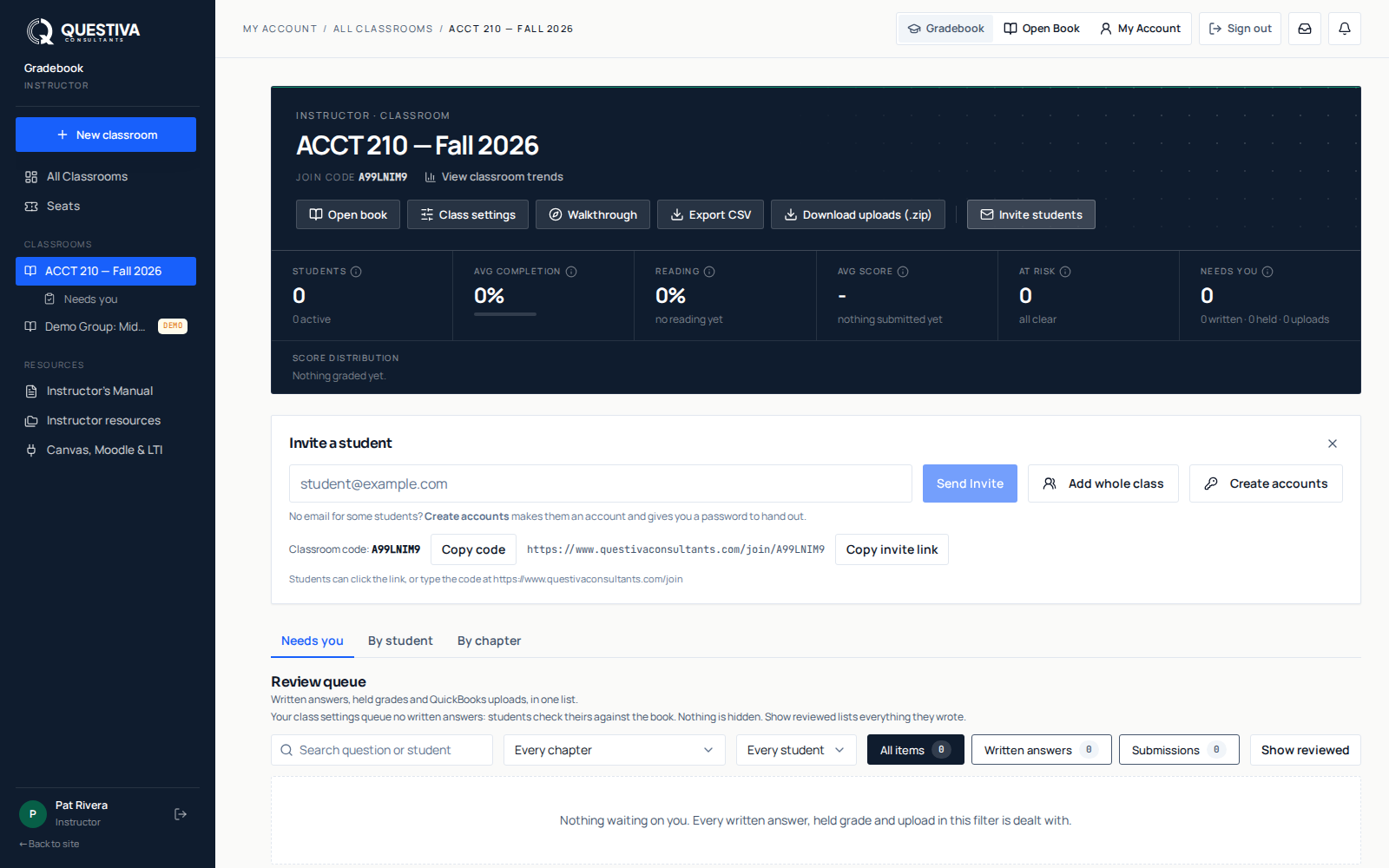
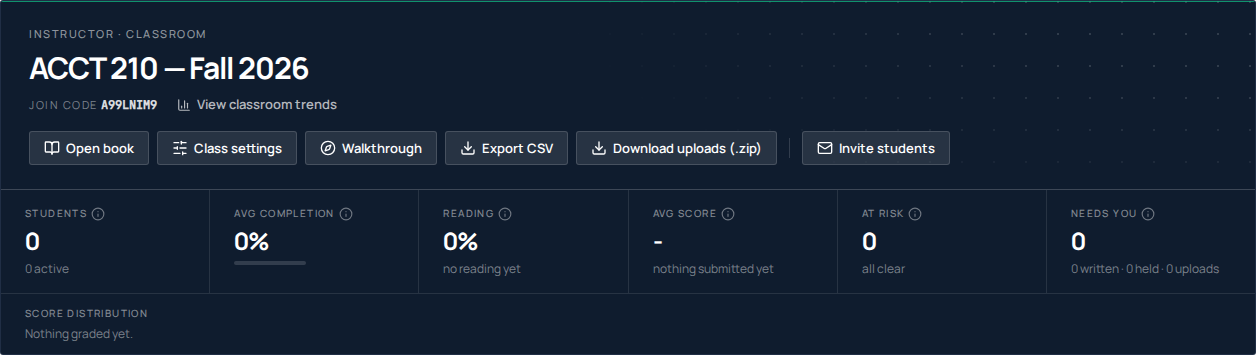
The button sits in the dark header at the top of your class page. A panel headed Invite a student opens below it.
Type the address
Enter one student email address in the field, then select Send Invite. You can press Enter instead of selecting the button.
Read the confirmation
A green message says
Invitation email sent.if the address is new, orStudent added and notified.if that person already has an account.Check the roster
The new row appears below with an
Invitedbadge until the student accepts. Repeat for the next address, the panel stays open.

Add your whole class at once
Select Add whole class in the invite panel. This is the one to use for a real cohort. It handles a class list the way it actually comes out of your student system.
Paste or upload
Paste addresses into the box: one per line, comma-separated, or straight out of a spreadsheet. Or select Upload CSV and pick a
.csvor.txtfile.Let it find the addresses
Name columns, student ID columns and stray punctuation are skipped automatically. A live counter tells you how many addresses were detected.
Send
Select the Add students button, which names the count it is about to process.
Read the summary
You get a count of invitations sent and students added directly, plus every skipped address listed with the reason it was skipped.
One bad row does not sink the upload. A malformed address comes back as skipped with Not a valid email address., a student already on your roster comes back as skipped too, and every good address in the same paste still goes out. Blank lines and repeats within the same paste are ignored quietly rather than reported as problems.
Share the group code or the invite link
Every real class gets an 8-character code of letters and numbers when you create it. You will see it in two places: under the class name in the header, labelled Join code, and at the bottom of the invite panel, labelled Group code.
- Copy code puts the 8 characters on your clipboard, the version you read out in class or print on a handout.
- Copy invite link puts the full web address on your clipboard, ending in the code. That is what you paste into an LMS announcement.
- Students who only have the code can type it on the join page, which is the same address with
/joinon the end and nothing after it.
The code has no expiry of its own and does not need to be reissued each term. It stops working when the class is archived, so an old syllabus cannot walk last year's students into this year's class.
What the student sees
The invitation email arrives with the subject "Your name invited you to join Your class name". It names you, names the class, describes the reader and the graded work waiting inside, and carries one join button. Underneath the button it repeats the group code as a fallback, in case the button does not survive a school mail filter.
Selecting the link, or typing the code, brings the student to a join card.
- No account yet: they see "Join the group" and a Create free account button. Signing up takes an email address and a 6-digit code we send them. There is no password to invent. A brand-new account answers a short profile question first, then the join finishes by itself.
- Already signed in: the join runs immediately and they land on their My Group page, unless your class has a textbook they are not covered for, then they stay on a confirmation card naming the book.
- Already in your class: they see "You're already in" rather than an error.
- Mistyped code: they see a message telling them to check the code with you, and reminding them that codes are 8 letters and numbers.
As the student joins, we check the seats you hold and claim one for them automatically if you have a free seat that covers your class textbook. Nothing is asked of you or of them. A seat pool bought for a different title never covers this class; if nothing covers them the join still succeeds, and the card names the textbook the class is using so they know what they need.
Watching the roster while you wait
An invited student sits on your roster from the moment you send the invitation, so you can see who has not accepted yet.
| What you see on the row | What it means |
|---|---|
Invited badge | The invitation has gone out and is waiting to be accepted. |
Invited plus a date | The date the most recent invitation email left our system. |
Not sent yet | The row exists but no invitation has been sent from it. |
Awaiting approval badge | Your teacher account is still being verified. The invitation is held and sends by itself once that clears. |
| Paper-plane button | Send the same invitation email again. Hover it to see when it last went out. It appears only on a genuinely pending row. Not on an Awaiting approval row, and not in the demo class. |
Messages you may run into
- "This student is already a member or has a pending invitation.", that address is already on the roster. Nothing was sent twice, and nothing was overwritten.
- "That account is already on this roster as …": the person exists on the roster under a different address. One account holds one place in a class, so remove the old row before inviting the new address.
- "This student has already joined the class …", you tried to resend to someone who is in.
- "Your teacher removed you from this group.", what a removed student sees if they try the group code again. Invite them again to bring them back; the roster row they had is reused.
Students with no usable email address
If some students have no inbox you can reach, the invite panel has a third option, Create accounts, which makes the accounts for you and hands you a password for each one to distribute. It is meant for post-secondary and adult learners only.
One thing the demo class will not do
The demo group is a sandbox with fictional students, so it cannot take real invitations, and it shows Use this for real in place of Invite students. Adopt it into a real class first, then invite.
Questions we get about this
- Do invitations expire?
- No. An invitation link stays valid until the student uses it or you remove them from the roster. A student who opens the email in week three of the semester still lands in your class.
- Can a student join without an invitation email?
- Yes. Give them the 8-character group code and they can type it on the join page, or send them the invite link. Both routes create the same roster row an emailed invitation would.
- What happens if I invite the same student twice?
- Nothing bad. The second attempt is refused with a message saying they are already a member or already have a pending invitation, and in a bulk upload it comes back as a skipped row while every other address still goes out.
- Does a student need to do anything about the textbook when they join?
- Not if you hold a free seat that covers your class textbook. One is claimed for them automatically as they join. If nothing covers them, they still join, and the join card names the book the class is using.