- Where you turn it on
- The class in the Teacher Dashboard, the Class settings button
- Where you release
- The class in the Teacher Dashboard, the Needs you tab
- Applies to
- Graded QuickBooks activities only, not the practice quizzes
- Setting level
- Per class, and it applies to every student in that class
Some instructors want the score to land the moment a student uploads. Others want to look at the work first. Both are supported, and the choice belongs to you, one class at a time.
When you turn smart grading off for a class, students still do the hands-on work in QuickBooks Online and still upload their export. The grader still runs and still records everything it found. What changes is who sees the verdict: it goes to you, and nothing reaches the student until you release it.
Turn the hold on for a class
Open the class
Go to your classrooms and click the class you want. The classroom dashboard opens.
Open Class settings
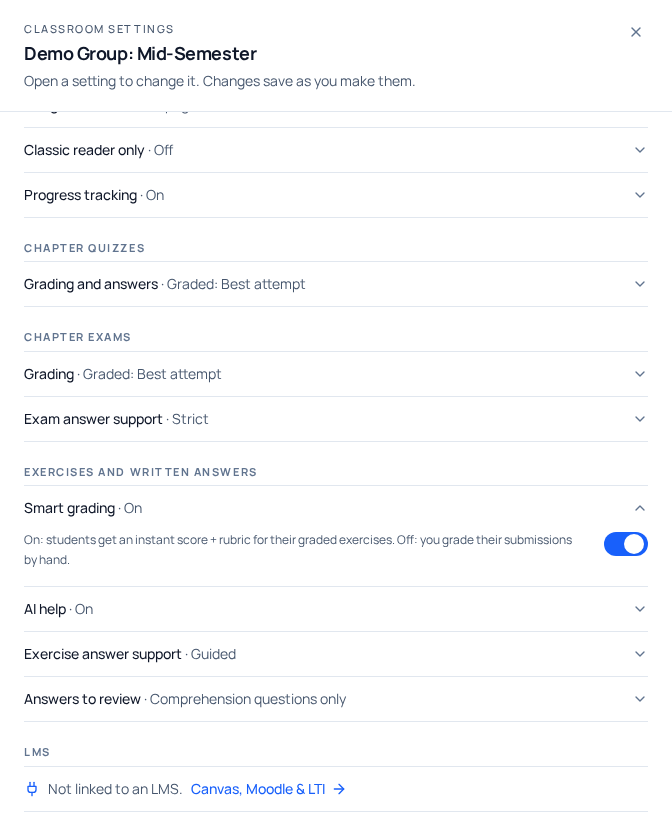
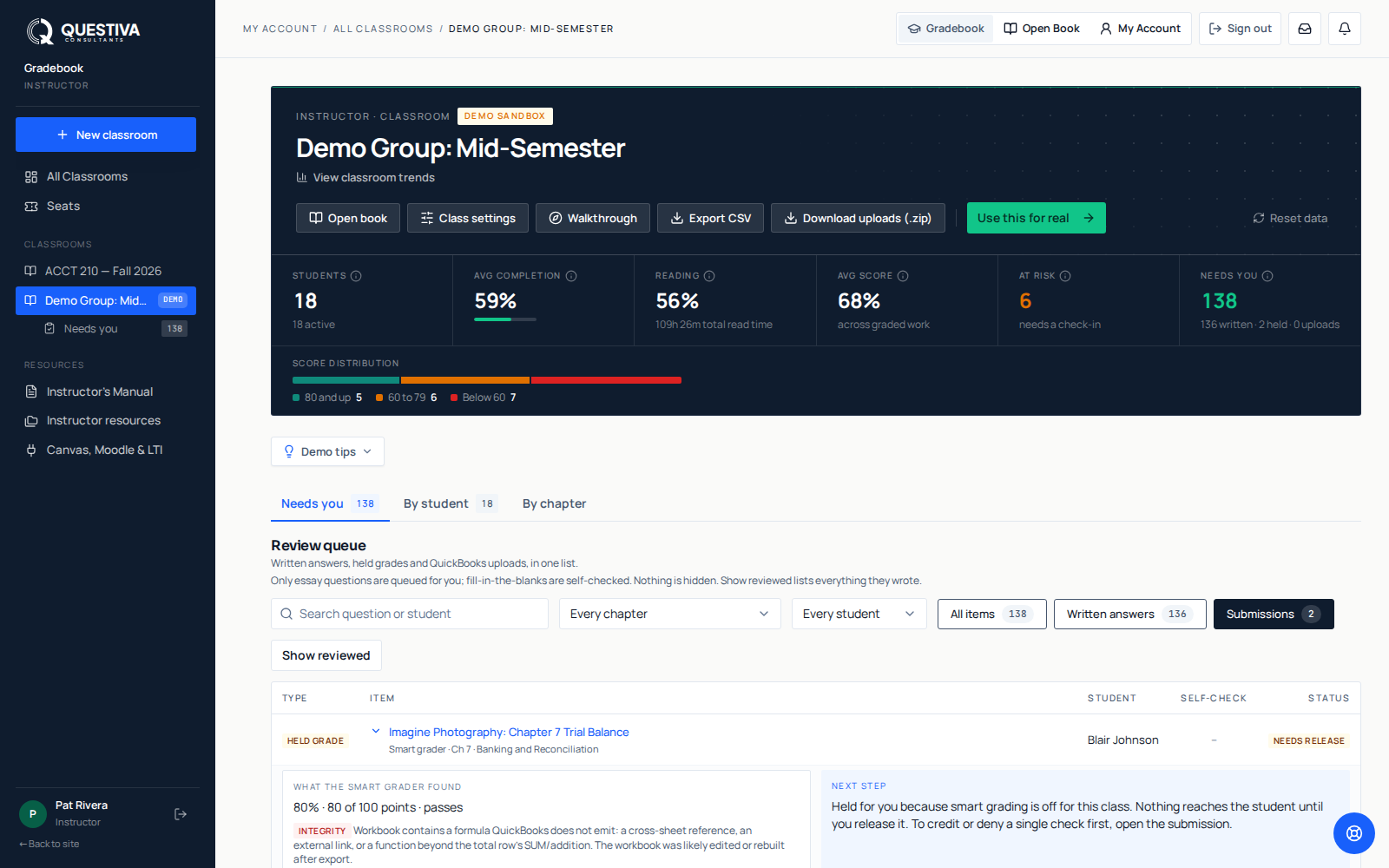
The Class settings button sits in the row of actions under the class name. It opens the settings sheet, with the grading switch at the top.
Switch off Smart grading
The help text under it states the trade plainly. On, students get an instant score and rubric. Off, you grade their submissions by hand. The toggle saves itself. There is no separate Save button.
New classes inherit the reader-control defaults saved on your account, which you set in the reader setup walkthrough. That walkthrough pre-selects smart grading off, so if you accepted its recommendations your new classes start out holding grades. A class created before you ever saved a default gets the built-in setting instead, which is smart grading on.
What your student sees while a grade is held
The student uploads their Excel export and gets a plain confirmation: a Turned in badge, the heading Sent to your teacher, and a line saying their export was received and recorded, that you review submissions by hand for this class, and that their grade will appear once you have posted it. Until then the activity shows an Awaiting review badge under Your test results on their dashboard. Below the confirmation sits the filename they sent, marked turned in just now.
On the submission itself, everything the grader worked out is withheld from them: the score, the pass or not-passed mark, the integrity reading, and the check-by-check rubric are all held back. The optional AI study help cannot be used as a way around that either. It only answers on a released submission that did not pass, so it refuses a held one.
Students can still turn in a different file. The panel offers Submit a different file, which starts a fresh attempt, unless that activity sets an attempt cap and they have used it up. Each attempt is held on its own, so a student who resubmits twice puts three rows in your queue.
Find what is waiting for you
Open Needs you
Open the class in the Teacher Dashboard: it opens on the Needs you tab, a Review queue with held grades at the top. While that class is open, the same list sits in the left sidebar as Needs you, with a count.
Filter to Submissions
The filters across the top are All items, Written answers and Submissions, each with a count. Submissions narrows the queue to QuickBooks work. Held rows carry a Held grade badge and the status
Needs release.Expand the row
Click the row to open it. You see what the smart grader found (the score, points and whether it passes), any integrity flags, and the buttons Release grade, Open submission and Their file, the exact workbook they uploaded.
Your view is never masked. Triage only works if you can see what the grader concluded, so the score and integrity flags show on held rows even though the student cannot see them yet.
You can also come at it from one student. Their record (the By student tab, then View progress) has a Smart grader card, and the need you link beside their name jumps to their items in the queue. The card's score describes released work only, so a held activity does not count yet.

Review before you release
Click Open submission in the expanded row to see the full submission. You get the score, the rubric run check by check, the integrity panel, a download of the workbook itself, and (once there is more than one) the student's whole attempt history on that activity, so you can see what changed between uploads.
If the grader marked something wrongly, use Override on that check. You flip it and record a short reason, which is required. The submission's score recalculates immediately from the corrected checks. Optional, informational checks are the exception: flipping one corrects the feedback without moving the score.
Release the grade
Go back to Needs you
Use Back to Needs you at the top of the review page. Release lives in the queue row, not on the review page.
Expand the row and click Release grade
It sits under what the smart grader found, beside Open submission.
Confirm
A dialog asks Release this grade to the student by name and says what they will get: the score, the check-by-check breakdown, their Points, and the grade in your LMS if the class is linked. Click Release grade.
| Item | While held | After you release |
|---|---|---|
| Score | Hidden from the student | Shown on their result |
| Passed or not passed | Hidden on the submission | Shown against the activity's passing mark |
| Check-by-check rubric | Hidden | Shown, with any check you overrode labelled instructor override |
| Integrity reading | Hidden | Shown |
| Points (XP) | Not awarded | Awarded, once per activity, the first time a passing attempt is released |
| Your queue | Row sits in Needs you as Needs release | Row leaves the queue (Show reviewed brings it back) |
Releasing is deliberate and one submission at a time. There is no bulk release, and the confirmation is there because posting a grade is not something to undo casually. You can still correct individual checks after a release; the score updates from your correction.
A few things worth knowing
- Held work is not cleaned up. The routine that ages out old uploads skips anything still awaiting your review, so a submission you sit on for a month is still there, workbook and all.
- Held work does not hold a chapter shut. Graded QuickBooks activities never block a student's chapter completion, so a student is not stuck waiting on you to keep reading.
- The practice quizzes are a separate control. Chapter quizzes in Class settings decides how they are graded and when students see the answers, and the Answer support dial below it decides how much of the answer key the graded exercises reveal. Holding graded activities changes neither.
- Written chapter-review answers are different again. Those are read, not scored, and they sit in the same Needs you list, marked Written.
- Grading actions need a verified teacher account. While you are exploring a demo classroom before your account is approved, you can open and read held submissions, but posting a grade, overriding a check, downloading a student's workbook and changing the class toggles are all blocked.
One last piece of plumbing worth understanding. A submission is attached to the class whose textbook matches the activity, or to your class if that student is only in one. A student enrolled in several classes, none of whose books match the activity, can end up with a submission attached to no class at all, and an unattached submission is graded straight away and never reaches a queue. If a student swears they turned something in and you cannot find it, that is the first thing to check.
Questions we get about this
- I overrode a check. Why does the student still see nothing?
- Because an override changes the score, not the hold. The submission stays in Needs you until you expand its row, click Release grade and confirm.
- Does the student get an email when I release a grade?
- No. Nothing is sent. The score appears for the student the next time they open that activity or look at their submission history.
- Can I release a whole class at once?
- No. Release is one submission at a time from its row in the queue, with a confirmation step. Filter Needs you to Submissions and work down the list.
- If I turn smart grading back on, do the held submissions go out automatically?
- No. The setting applies to work turned in from that point forward. Anything already held stays held until you release it by hand.