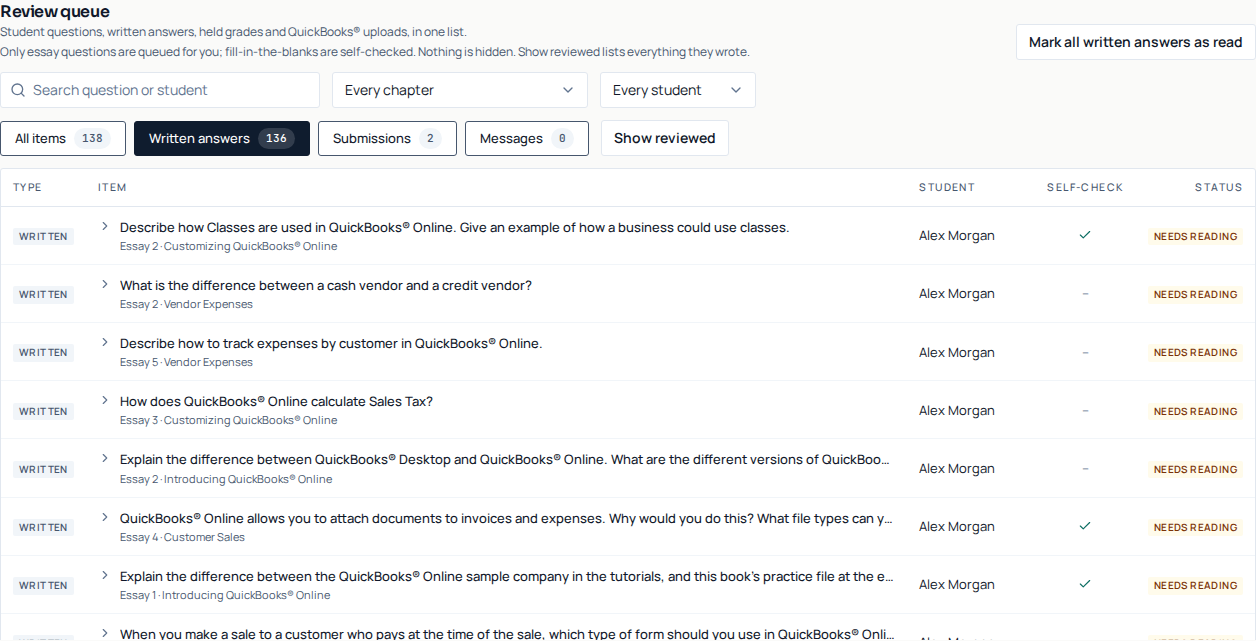
The chapter reviews in the 2026 textbook have two parts that are written rather than multiple choice: Comprehension Questions and Fill-in-the-Blanks (the book prints them as Completion Statements). Students type those answers straight into the reader. Once a student is signed in, their writing is saved to their account and lands in one place for you, a queue of the whole class's answers that you can work through in a sitting.
- Where
- The class in the Teacher Dashboard, the Needs you tab, filtered to Written answers
- What is in it
- Comprehension questions and completion statements from every student on your roster
- Effect on grades
- None. Reading an answer is feedback, not a mark
- How much reaches you
- Your call, in Class settings → Answers to review. New classes queue nothing: you opt in
- Per student
- Each chapter's Practice quizzes card on a student's page
Where the queue lives
Every class in the Teacher Dashboard opens on its Needs you tab, the Review queue: written answers, held grades and QuickBooks uploads in one list. Written answers carry a Written badge, and the Written answers filter shows only them, with a count. When the count is zero, your class is caught up.
Open your class
Go to your classroom list and pick the class you want. It opens on the Needs you tab.
Filter to Written answers
Click Written answers above the list. The chapter and student menus beside the search narrow it further.
Work down the page
Each row is one answer, with the question, the chapter and the student. Click it to open what they wrote, the answer key if you want it, a note box and your verdict. Read, decide, move on.
What shows up in the queue
The queue is scoped to one class and to students who are currently on its roster. Each row carries a single answer to a single question, so a student who wrote six comprehension answers in a chapter gives you six rows.
- Answers only. A question a student has not typed into never appears. You are not scrolling past blanks to find work.
- Both written sections. Comprehension questions and completion statements sit in the same queue, labelled on each row.
- Newest work first. The most recently edited answer is at the top, so a student who revised something last night is the first thing you see.
- Roster-scoped. If you remove a student from the class, their answers leave the queue with them.
Needs you lists only what still owes a verdict, and its count is always the whole classroom. It does not shrink as you load more, so it is a true measure of what is left. Turn on Show reviewed to browse everything, including work you have already been through.
Deciding how much comes to you
The 2026 book's Lite chapters ask 32 comprehension questions and 36 fill-in-the-blanks. That is 68 written items per student, and a class of ten working through the first two chapters will put a few dozen rows in front of you. Answers to review, in Class settings, decides how many of them are queued as work waiting on you.
| Setting | What is queued for you |
|---|---|
| Nothing, they check themselves (new classes start here) | No written answers wait on you at all. Students check their own work against the book's answer key and say how they did. |
| Comprehension questions only | The prose answers. Fill-in-the-blanks are not queued, because the book prints those answers in Appendix B and a student can check them without you. |
| Everything they write | Every comprehension answer and every fill-in-the-blank waits for you to read it. |
Students checking their own work
The book's Appendix B prints model answers to both written sections. In the reader, a student who has written something can select Show answer to see the book's, then say I got it or I missed it. That claim is theirs, not a mark. Nothing scores it, and it never clears an answer out of your queue: only your verdict does that.
What it buys you is a to-do list. For the class-wide picture, open the By chapter tab and pick a chapter: its Practice quizzes tab shows, student by student, how many written answers still owe you a read. Each student's own self-check sits beside every answer, in Needs you and on their page. Filter Needs you to a chapter, and Mark all written answers as read clears that chapter in one go.
The two verdicts
Under each answer is an optional note box and two buttons. The note is genuinely optional (you can clear a whole class without typing a word), and it takes up to 1,000 characters when you do want to say something.
Which two buttons you get depends on the class's quiz mode. A class on Graded. First attempt marks written work Correct or Incorrect; every other mode reads and responds with Mark as read and Ask for another look. See how chapter quizzes are graded for the modes themselves.
| Button | What it records | What the student sees |
|---|---|---|
| Mark as read | You have read this answer and it is fine as it stands. The row picks up a Read badge. | A green "Reviewed by your teacher" line under their answer in the reader, with your note if you left one. |
| Ask for another look | You want the student to revisit it. The row picks up a Sent back badge. | An amber "Your teacher suggests another look" line under their answer, with your note if you left one. |
Either way the answer leaves Needs you and your verdict appears under that answer in the student's reader, with your note if you left one.
Mark all written answers as read does the same thing to everything currently waiting, or to just the chapter you have filtered to. It leaves alone any answer you have already sent back for another look, along with the note you left on it, so a bulk pass cannot quietly overwrite a considered decision.
| In a Graded: First attempt class | What it records | What the student sees |
|---|---|---|
| Correct | You have marked this answer right. The row picks up a Correct badge. | A green "Marked correct by your teacher" line under their answer, with your note if you left one. |
| Incorrect | You have marked it wrong. The row picks up an Incorrect badge. | An amber "Marked incorrect by your teacher" line under their answer, with your note if you left one. |
Your students hear back once, not once per answer
Verdicts do not notify a student one at a time. Everything you leave collects, and every six hours each student who has something waiting gets one item in their bell summarising it. How many answers, which chapters, how they were judged, and how many notes you left. Work down a whole chapter for one student and they get a single line about it rather than a dozen.
The summary leads with anything you sent back or marked incorrect, because that is the part that asks something of them. Nothing is emailed, at any point.
When a student rewrites an answer
Students can go back and edit their answers at any time, which is the point of asking them to write in the first place. If a student rewrites an answer you have already read, that answer returns to Needs you, and opening it shows an Edited since you read it note.
The badge exists because a verdict alone would hide the one fact you need: your last read described text that no longer exists. Reading the new version and marking it again clears the flag. A student who takes your note and improves their answer therefore comes back around to you automatically, without either of you having to keep track.
Reading one student instead of the whole class
The queue is built for a pass over the class. When you want everything one student has written (before a meeting, or because a score does not match the impression you have of them) open their name from the roster and scroll to the Written answers panel.
That panel groups their answers by chapter and shows each one with its status: Passed, Needs another look, or Not reviewed. It also shows the small details the queue leaves out. A revision count once an answer has been rewritten at least once, a note when it was edited since your review, and the text of the note you left. A badge in the panel header counts how many of that student's answers you still owe a read.
Seeing which checkpoint questions they missed
The written answers tell you how a student thinks. The multiple-choice checkpoint tells you what they got wrong. Both live on the same student page, so you rarely have to go looking twice.
The Chapter checkpoints panel lists every chapter checkpoint the student has attempted, with the number of attempts, the date of the last one, a Passed or Not passed badge, and their best result as a number correct out of the total. Select a row to expand it and see their most recent attempt question by question: a tick or a cross, the question as it was printed, and the option they chose. Where they were wrong, the correct choice is shown beside it so you do not have to go and look it up. Where they left a question blank, it says so.
A workable rhythm
- Check the Needs you count once a week. At zero, there is nothing to do.
- Work Needs you top to bottom rather than hunting by student.
- Leave notes sparingly and where they will change something. An answer that is fine needs Mark as read and nothing else.
- Use Ask for another look (or Incorrect) when you want the work back. The student gets the amber prompt in the reader, it is named in their next grading summary, and their rewrite returns to you flagged.
Questions we get about this
- Does marking a written answer change the student's grade?
- No. Reading an answer records that you read it and delivers your note. It does not add points, move a percentage, complete a chapter, or award XP. The written sections of the chapter review are not marked.
- Do students get an email when I leave a note?
- No. Nothing about this queue sends mail. Students get one summary item in their notification bell every six hours covering everything you left in that window (not one per verdict), and each note appears in the reader directly under the answer it refers to.
- What happens if a student changes an answer after I have read it?
- It comes straight back into Needs you with an "Edited since you read it" badge, so your earlier verdict is never left attached to text that has since changed. Reading it again clears the badge.
- There are too many answers to click through. Can I stop the fill-in-the-blanks coming to me?
- Yes. Class settings → Answers to review → Comprehension questions only, which is what new classes start on. The fill-in-the-blanks are still written, still saved and still readable with Show reviewed on; they just stop waiting on you. Students check them against the book's Appendix B answers themselves, provided Answer support is not set to "The class works the problem".
- If a student marks their own answer right, does that count for anything?
- It counts as information for you, and nothing else. It is their claim about their own work after seeing the book's answer, it is labelled that way everywhere it appears, and it moves no score, no chapter completion and no XP. It also does not clear the answer out of your queue.
- Why is a student's written work missing from the queue?
- Written answers only reach you once the student is signed in to their own account. Anything typed while browsing as a guest stays on that device. Answers a student has cleared back to empty also drop out, and so do the answers of anyone you have removed from the roster. Note too that not every chapter has both written sections. A chapter may carry completion statements without comprehension questions.