A class can have more than one teacher. Invite a colleague and the class appears in their own Teacher Dashboard, with everything you see in it.
Invite a colleague
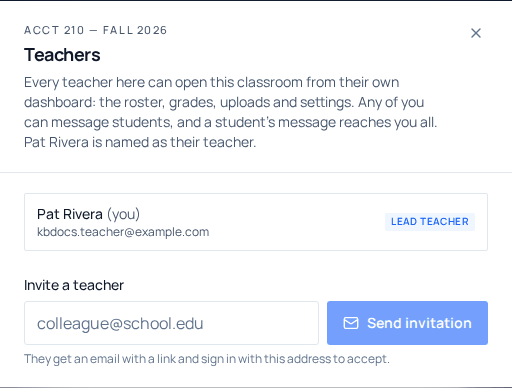
Open your class and choose Invite teacher
It sits beside Invite students in the row of actions under the class name. A Teachers window opens. Practice classes don't have it.
Type their email and choose Send invitation
They get an email with a link. The invitation waits in the same dialog until they answer, where you can resend it or withdraw it.
They accept
They open the link and sign in with the address you invited (or create a free account with it). The link works for 14 days, and only for that address.
A class you co-teach shows Co-teaching in your list of classes.
What a co-teacher can do
| Lead teacher | Co-teacher | |
|---|---|---|
| See the roster, grades, uploads and trends | Yes | Yes |
| Adjust grades and review answers | Yes | Yes |
| Change class settings and assignments | Yes | Yes |
| Invite students and other teachers | Yes | Yes |
| Message students | Yes | Yes |
| Remove another teacher | Yes | No, but they can leave |
Students still see the lead teacher as their teacher, and seats come from the lead teacher's seat pool.
Messages
When a student sends a message, every teacher of the class hears about it, and any of you can answer. Once one of you has read it, it no longer counts as unread for the others. Each message shows who wrote it, so a student knows which teacher replied.
Remove a teacher, or leave
Open Invite teacher. The lead teacher removes a colleague with the × beside their name. A co-teacher sees Leave beside their own name instead. Nothing either of them did in the class is undone.