Teacher guideTracking progress
Tracking progress

Why does average completion show 0% when students are working?

Average completion counts chapters a student has finished: read through, hands-on steps ticked, checkpoint quiz passed. Here is what moves it, what does not, and what to check when it stays at zero.

Kind
Troubleshooting
Reading time
4 minutes
Last updated
September 24, 2026

A chapter counts as complete once a student has read it through, ticked off its hands-on steps, and passed its checkpoint quiz. That is the same verdict the reader shows the student at the end of the chapter, so what your dashboard says and what your class sees now agree. Average completion is the share of the book's chapters each student has finished on that rule, averaged across the students who have joined.

Where
Group dashboard, the Avg completion tile; the roster's Completion column
Counts
Chapters read through, with every hands-on step ticked and the checkpoint quiz passed
Does not count
Reading alone, a chapter half-ticked, graded QuickBooks uploads
Denominator
Real content chapters only. Front matter and the appendices are excluded, so 100% is reachable

What the number actually measures

For every student who has joined your class, the platform counts the chapters they have finished and divides by the number of chapters that carry work. A chapter is finished when three things are true: the student has read to the end of it, every self-attest hands-on step in it is ticked, and the chapter's checkpoint quiz has been passed. A chapter with no steps or no quiz simply needs the parts it has. You can also set the mark yourself with Adjust grades on a student's page, which is the way to credit a chapter a student demonstrated to you in person. See Adjust a student's grade.

Students still sitting on an unaccepted invitation are left out of the average altogether, so a half-joined roster does not drag the figure down. The roster still lists them (badged Invited, or Awaiting approval while the invitation is held behind teacher verification) with 0% of their own.

Graded QuickBooks work is shown, never required

The smart-graded QuickBooks activities are deliberately not part of the completion gate. Plenty of readers work through the book without a QuickBooks Online account of their own, and requiring an upload would wall them out of several chapters permanently. Those activities are still graded coursework. They award points, they land in your Submissions queue, and they show in the roster's Work column as QBO passed out of attempted. They just do not decide whether a chapter is finished.

If it is still at zero, work through this in order

  1. Check the class has a book attached

    If the hero band shows no Reading tile, no textbook is bound to this class. Open Customize chapters, quizzes & certification at the bottom of the class settings panel and choose one under Book. Without a book there are no chapters to count, and completion stays at 0% permanently.

  2. Check who has actually joined

    Rows badged Invited or Awaiting approval have no account in your class yet and no progress of any kind. They are excluded from the average, but they are also not doing any work.

  3. Check the class is early, not stuck

    Completion moves a whole chapter at a time. A class three weeks in that is midway through chapter four may genuinely have finished nothing yet. The category columns on the roster (Reading, Quizzes, Exams and Smart grader) move continuously and are the better read on a class that has just started.

  4. Look for chapters that are nearly done

    Open a student from the roster. Each chapter row on their page shows In Progress for a chapter they have started but not finished, usually a chapter read through with a checkpoint quiz not yet passed, or a few hands-on steps left unticked.

  5. Check that students have paid access to the book

    A chapter a student cannot open cannot be completed, and locked chapters stay in the denominator. Seats in the left sidebar lists your class under Who gets a seat and marks each student Has a seat or No seat.

  6. Check whether quizzes are switched off for the class

    If you have turned practice quizzes off, the checkpoint disappears from the reader and the chapter's hands-on work becomes the whole requirement, and completion still moves. If quizzes are on but a chapter's quiz is unpublished, that chapter needs only its steps.

Where the rest of your class's work is showing

Every other progress signal is recorded from the first day of the term, as long as Progress tracking is on for the class. It is on by default. One layout note: on the roster, the Last login column only renders on a wide screen, so widen the window if you cannot find it.

What you want to knowWhere to find it
How far through the book the class has readThe Reading tile in the dashboard hero band, and the Reading column on each roster row
How long a student has spent in the bookThe student's page, Time on task in the engagement strip; class-wide, View classroom trends under the classroom's name
Which checkpoint quizzes a student has takenThe roster's Quizzes column, and each chapter's Practice quizzes on the student's page
QuickBooks activities passed and attemptedThe roster's Smart grader column, and Needs you for held grades and uploads that could not be read
What a student actually wroteThe student's page, each chapter's Practice quizzes
Points, streaks and weekly activityView classroom trends under the classroom's name. Points are not on the roster: they reward activity and never feed a grade, so they stay off a table of grades
Reading reach chapter by chapterView classroom trends under the classroom's name, the Textbook reading panel
The Textbook reading panel on the Classroom trends page: tiles for students who started reading, active this week, average progress and total reading time, then a chapter-by-chapter list with Reached and Finished bars.
Classroom trends → Textbook reading. Every bar here moves on reading alone, which is the finest-grained view of a class that has not finished a chapter yet.

The highest number your class can reach

The denominator is the book's real content chapters, measured at the Lite level: Standard-only chapters do not count for the class, even for a student who holds Standard. The contents and the appendices are left out on purpose. They are reference material, not coursework, and Appendix A of the 2026 book is a teardown that ends by wiping the practice company, so requiring it to reach 100% would have been actively harmful. A class that finishes every content chapter shows 100%.

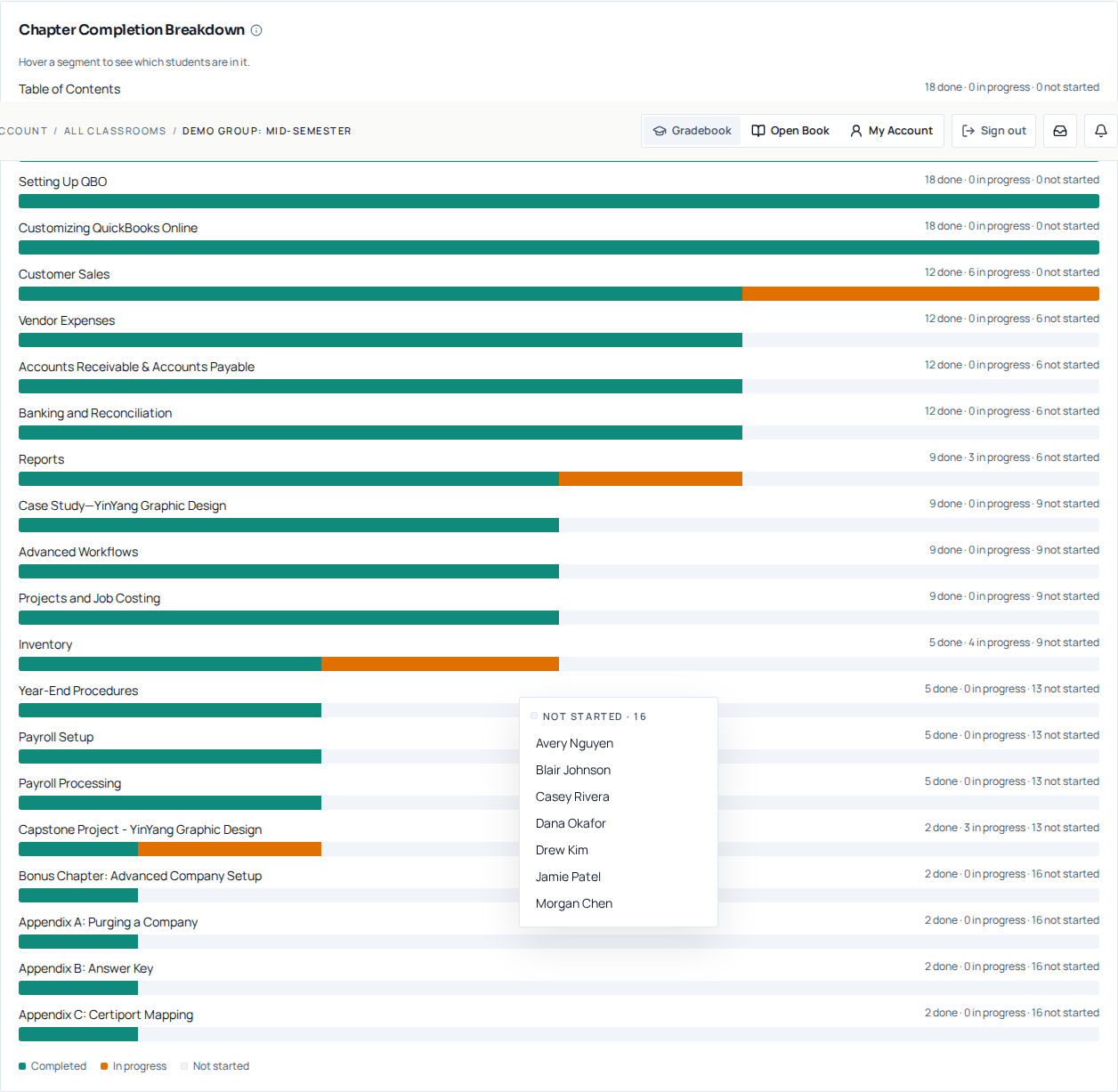
The Chapter Completion Breakdown panel on the Classroom trends page of the demo classroom, listing each chapter with a done / in progress / not started bar and a hover list naming the students who have not started.
Classroom trends → Chapter Completion Breakdown. Each bar splits your class into done, in progress and not started for that chapter.

One knock-on effect worth knowing

The At risk count needs two things to be true at once: the student is under 50% complete and has not signed in for 14 days or more (or has never signed in). Both halves are live again now that completion moves. A student who is well through the book and simply took a fortnight off is no longer flagged, and a student who is genuinely behind and quiet is.

Quick answers

Questions we get about this

My student used "Mark chapter complete" in the reader. Why did completion not move?
That control ticks the chapter's hands-on steps and moves their reading position, so it covers two of the three requirements. If the chapter has a checkpoint quiz, it still has to be passed. You can see what was declared rather than done on the student's page, as a "Skipped" badge showing how many steps were ticked in one click.
A student passed the checkpoint quiz. Why is the chapter still not complete?
Passing the quiz is one of three requirements. Check that they have also read to the end of the chapter and ticked every hands-on step in it. Their chapter row on the student's page will show In Progress until all three are true.
What about the Course column?
Course is the grade on record once you set one. Until then it is a suggested blend of the student's average score, completion and participation, labelled Suggested so it is never read as your mark. The average score inside it is their best result on each checkpoint quiz plus any chapter exams; repeat attempts at a checkpoint do not drag it down. A dash means nothing graded yet.
Does turning off "Progress tracking" change my dashboard?
Yes, more than the toggle's own wording suggests. With it off, the reader stops saving reading position, read time and checkpoint quiz attempts for students in that class, which are the signals completion is built from, so it stops moving too. Graded QuickBooks submissions are recorded on their own path and are unaffected. Leave it on unless you specifically want to hide the progress rail from your students.
Do students who never accepted their invitation pull the average down?
No. The average is taken across students who have joined and have an account. Invited rows are listed on the roster so you can chase them, but they are excluded from the completion figure.
Still stuck

Ask us directly.

A real person on our team reads every message and replies within one to two business days. If something in your classroom is not behaving the way this guide describes, tell us. That is a bug, and we want it.