Chapter exams start on Strict: after submitting, students see their score and which questions they missed, but not the right answers. You decide when the answers come out, one chapter at a time.
Open the chapter
On your Teacher Dashboard, open the class, choose By chapter, then the chapter.
Choose the Exams tab
The box at the top says what students see today and which Exam answer support level the class is on.
Choose Release answers
The confirm tells you how many students took the exam. In a real class each of them gets an email and a notification. A demo class gets a notification, never an email. If nobody has taken it yet, nobody is notified.

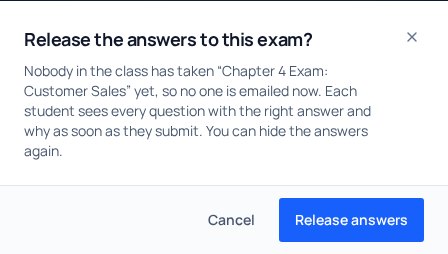
Students who have taken it can then open Review your answers on the exam: every question, what they answered, the right answer and why. Their score does not change. Anyone who takes the exam after you release the answers sees them as soon as they submit.
Taking them back
Hide answers in the same place closes the review again. Emails already sent stay sent.
Showing answers automatically
In Class settings, under Chapter exams, Exam answer support sets what students see the moment they submit, for every chapter: Strict (score only, until you release), Guided (the right answers as soon as they submit; the explanations wait until you release them) or Open (the right answers and why, as soon as they submit). It sits beside the exam Grading row and is separate from the quiz and exercise settings.
Each exam is one sitting unless you reopen it. If you reopen an exam after its answers are out, the retake is open-book. See Let a student retake a chapter exam.
The chapter exams are multiple choice. Fill-in-the-blank questions are in the chapter quizzes: see How chapter quizzes are graded.